Samsung Note
Learn how to access and use Samsung Note.
In this tutorial, you will learn how to:
• Access Samsung Note
• Create a note
• Share a note
• Delete a note
• Convert to Math
• Adjust Samsung Note settings
Access Samsung Note
From the home screen, select the  Samsung Note app.
Note: Samsung Notes combines the real note experience with handwriting on text with the convenience of auto-sync and easy folder management. Samsung Note allows you to import and annotate PDFs and share notebooks with contacts.
Create a note
 Menu icon >
  Settings icon > edit settings as desired.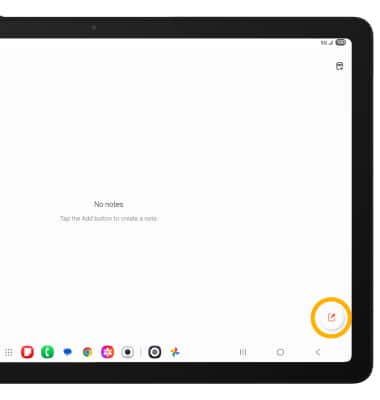
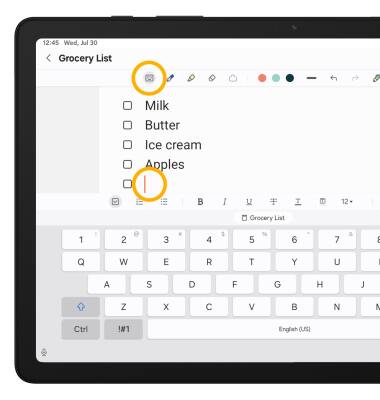
Note: To change the text style, color and size, select the desired icon at the bottom of the page.
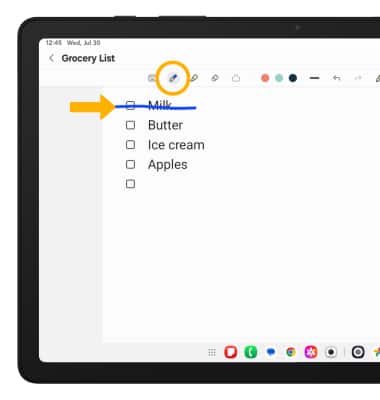
3. To write on the screen, select the Pen icon then use your S pen to write on the screen.
Note: To change the style and color of writing, select the Pen icon then edit settings as desired.
4. When finished, select the back arrow to exit the note. Notes will automatically be saved in Samsung Note.
Note: To save the note to another location, from the desired note, select the
 Menu icon > Save as file > select the desired file option > navigate to the desired save location > Done > enter desired file name > select Save.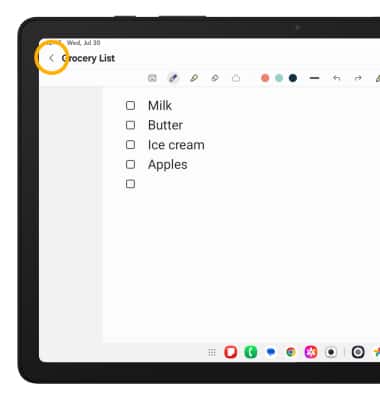
Share a note
1. To share a note, from the desired note, select the Menu icon then select the Share icon.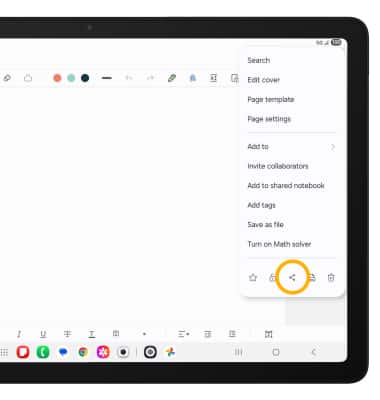
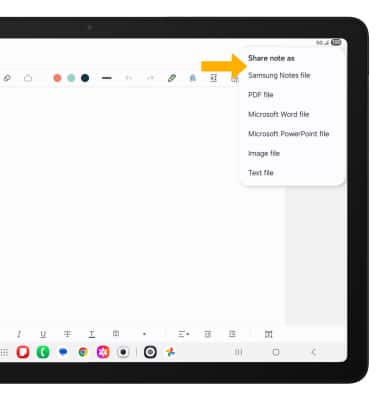
2. Select the desired file type to share the note.
2. Select the desired share option, then follow the prompts to share your note.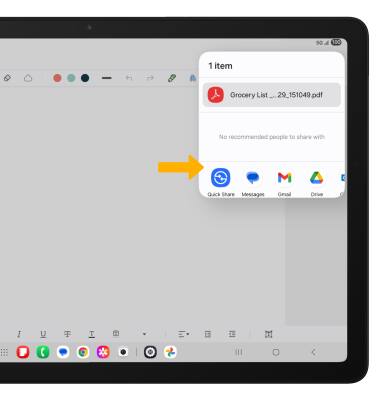
Delete a note
From the Samsung Note screen, select and hold the desired note then select the  Delete icon. Select Move to Trash to confirm.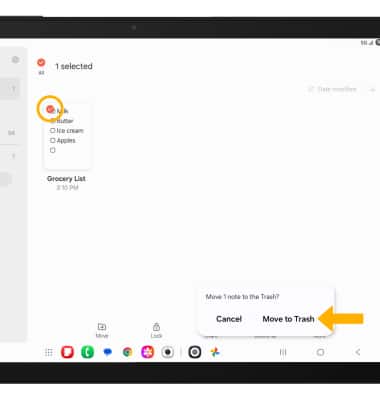
Convert to Math
1. To enable Math solver, from the desired note, select the Menu icon then select the Turn on Math solver.
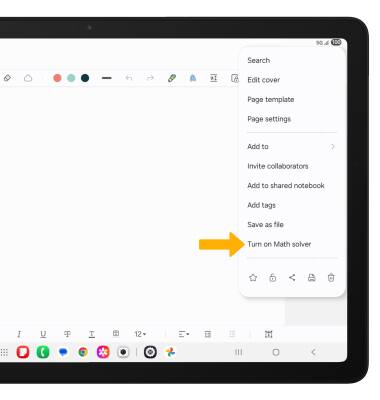
2. Select the Keyboard icon. Type the desired equation, then select the equals key. Math solver will automatically generate the solution to the equation in blue. 
Adjust Samsung Note settings
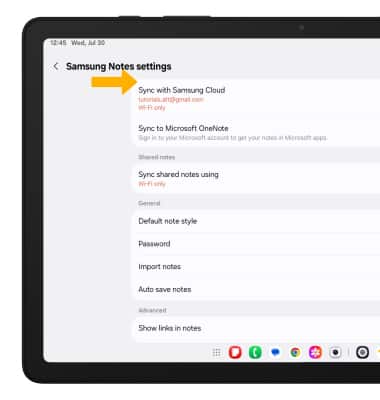
1. From the Samsung Note screen, select the Menu icon then select the Settings icon.
2. Edit settings as desired.