Samsung SmartThings
Learn how to use Samsung SmartThings to connect to and control a wide range of devices.

Samsung SmartThings allows you to wirelessly connect your device with a whole range of smart devices and lets everything work together.
In this tutorial, you will learn how to:
• Access Samsung SmartThings
• Add a device to Samsung SmartThings
• Edit Samsung SmartThings settings
Access Samsung SmartThings
1. Navigate to and select the  SmartThings app.
2. Review the SmartThings prompts, then select Continue.
Note: To access Samsung SmartThings, you must first be signed into your Samsung account. If you have not already signed into your Samsung account, you will be greeted with a Sign in screen upon initial access of Samsung SmartThings. Select Get started then enter your account information > review the Terms and Conditions and Privacy Policy as desired.

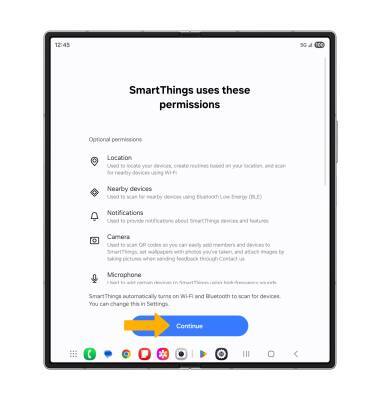
3. Review the SmartThings permissions prompt, then select Continue.
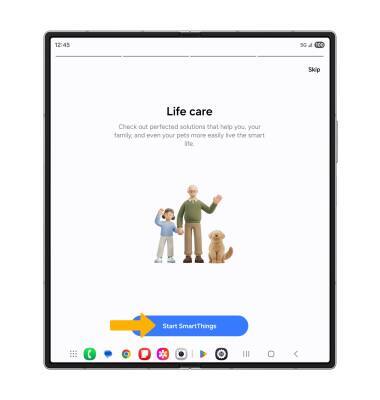
4. Select Start SmartThings.
Add a device to Samsung SmartThings
1. Select the Devices tab, then select Add device.
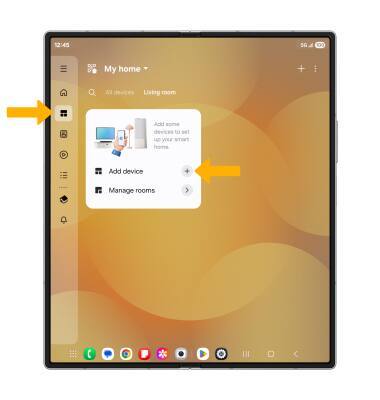
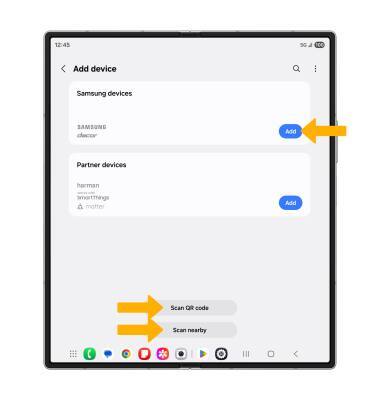
2. Select Add next to the desired device or select the desired scan option, then follow the prompts.
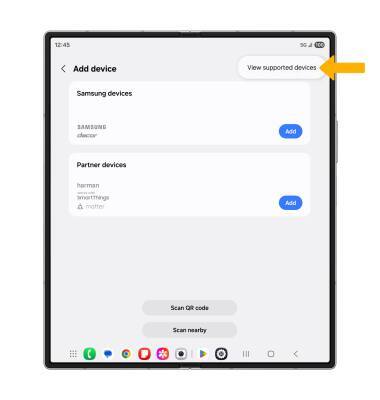
3. To add a device manually, select the  Menu icon then select View supported devices.
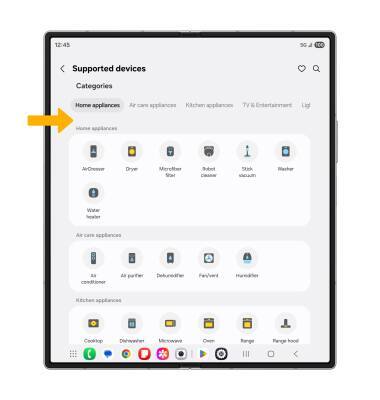
4. Scroll to and select the corresponding device type, then follow the prompts to complete set up.
Edit Samsung SmartThings settings
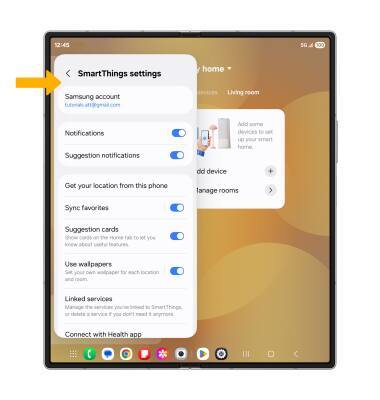
1. From the SmartThings screen, select the  Menu icon, then select the
  Settings icon.
2. Edit settings as desired.