View & Manage Data
Access Usage Manager to view data usage and set data limits.
In this tutorial, you will learn how to:
• Set data usage limit
• View data usage
• Access & edit data usage settings
Set data usage limit
1. From your device's web browser go to http://attwifimanager or type 192.168.1.1 into the search bar. Enter your Username and Password, then click SIGN IN.
Note: Ensure that your device is connected to the Netgear Nighthawk's Wi-Fi network. For more information, please see the Connect Devices to Wi-Fi or Connect PC or Mac to Wi-Fi tutorials.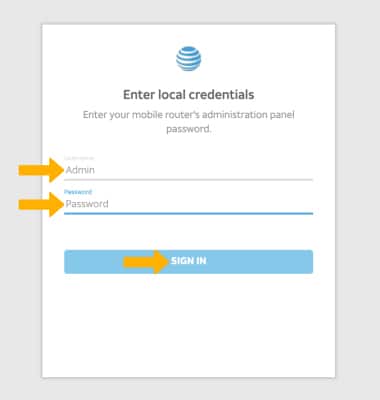
2. Click SETTINGS at the top of the screen.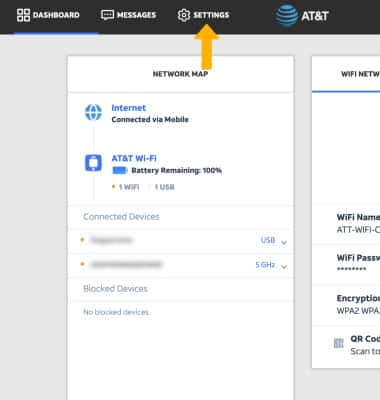
3. Click Advanced, then click Data Usage. 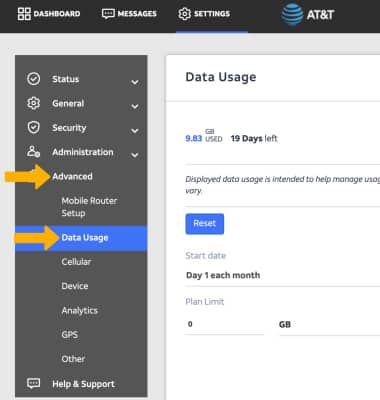
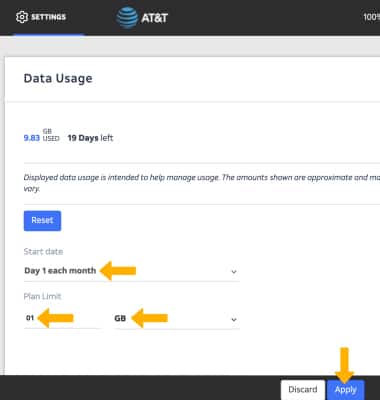
4. Adjust Data limit settings as desired, then click Apply.
View data usage
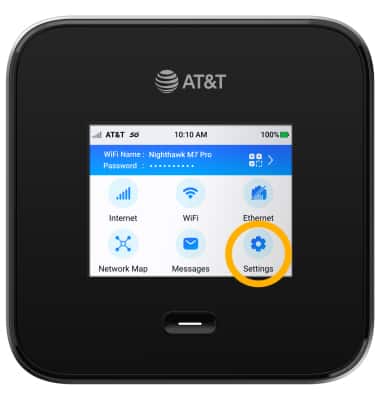
1. From the device home screen, select Settings.
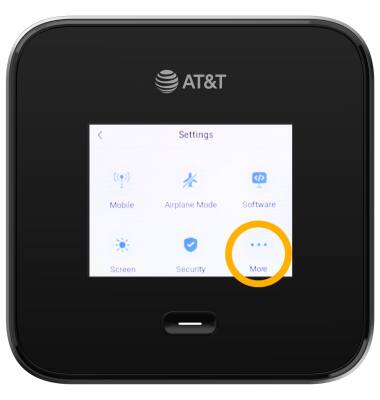
2. Select More.
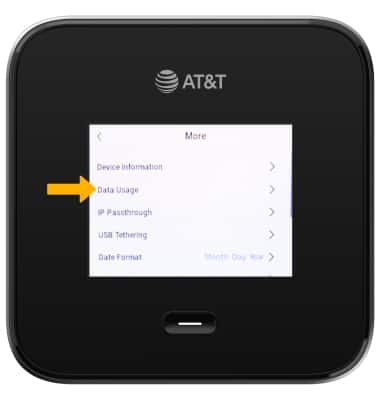
3. Scroll to and select Data Usage.
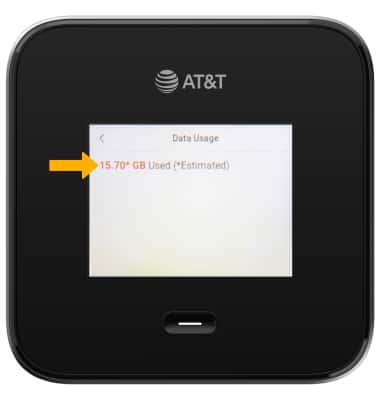
4. Data usage will be displayed.
Access & edit data usage settings
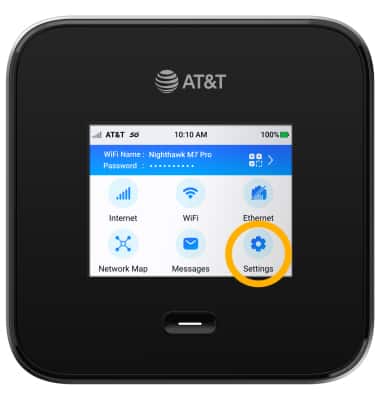
1. From the device home screen, select Settings.
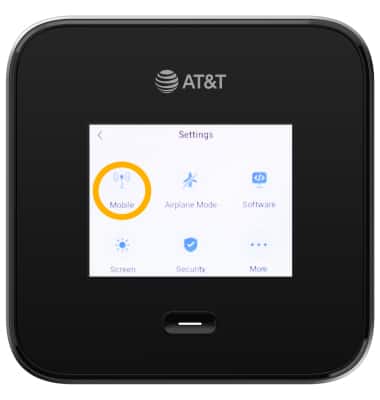
2. Select Mobile.
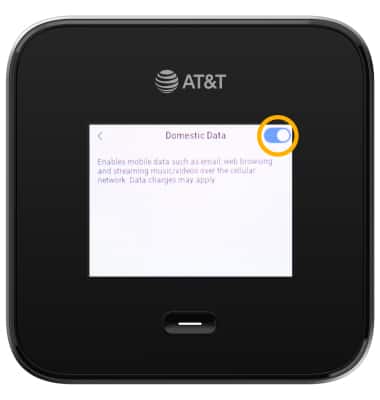
3. To disable Domestic or Roaming data, select the desired option.
Note: In this demonstration, Domestic data will be selected.
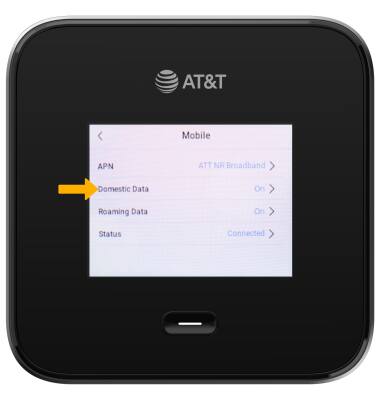
4. Select the Domestic data switch.