Take a Picture
Learn how to take a picture, use the front and rear camera, switch between camera and modes, and more.

In this tutorial, you will learn how to:
• Switch between cameras
• Focus the camera
• Zoom in and out
• Take a photo
• Enable or disable Quick Capture
This tutorial requires you open the Camera app. To access the camera from the home screen, select the Camera app.
Switch between cameras
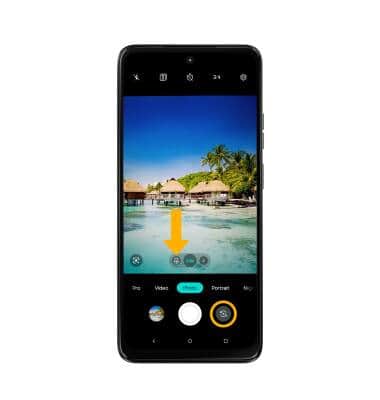
Select the Switch camera icon to switch between the back camera and front camera. Select the Macro icon to switch to the Macro camera.
Focus the camera
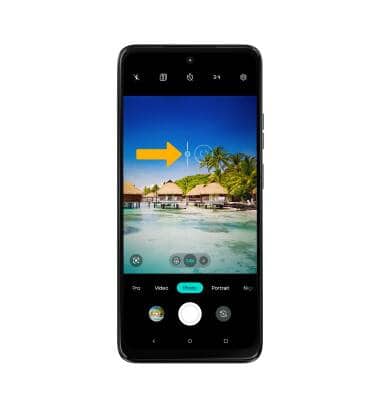
Select the desired area of the photo you wish to focus on. A circle will appear when the area is selected.
Zoom in and out
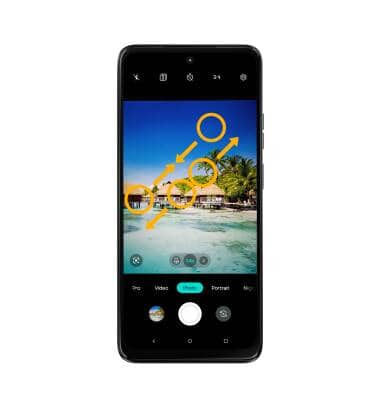
Move two fingers apart towards the edge of the screen to zoom in. Move two fingers inward towards the middle of the screen to zoom out.
Note: Zoom out all the way to 0.5X to capture Ultra-wide angle photos and videos.
Take a photo
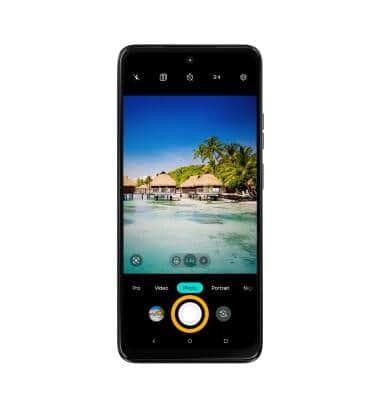
Select the Capture icon.
Note: Alternately, you can take a picture by pressing one of the Volume buttons.
Enable or disable Quick Capture
To enable Quick Capture, from the Camera screen, select the  Settings icon then scroll to and select Quick capture. Select the Quick capture switch, then edit the settings as desired.
Note: To quickly launch the Selfie camera, twist your wrist three times.
