Calendar
Access the calendar on your device and learn how to manage events.
In this tutorial, you will learn how to:
• Change the view mode
• Create an event
• View event information
• Edit an event
• Delete an event
To access the Calendar, swipe up from the bottom of the clock screen to access the Apps tray, then scroll to and select the  Calendar app.
Change the view mode
From the Calendar app, scroll to and select Weekly view.
Create an event
1. From the Calendar app, select the  Add icon.
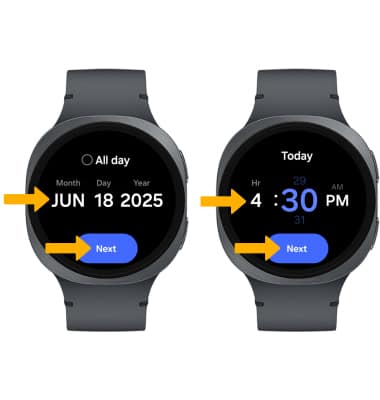
2. Enter the desired date, then select Next. Enter the desired time, then select Next.
3. Enter the event name, then select the checkmark icon. Edit the event information as desired, then select Save. 
View event information

Edit an event
From the desired event, scroll to and select Edit. Edit the event information as desired, then select Save.
Note: Events can only be edited on your connected device. You will only be allowed to edit events you have created.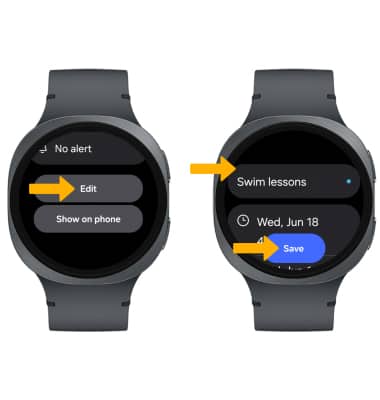
Delete an event
From the upcoming events list, select and hold the desired event, then select  Delete.