Digital Wellbeing
Keep track of how long you view screens and set limits using Digital Wellbeing features.
In this tutorial, you will learn how to:
• Access Digital Wellbeing tools
• Enable or disable Focus mode
• Set app time limits
• Access and use Sleep mode
• Enable or disable Do not disturb
Access Digital Wellbeing tools
1. Swipe down from the upper right corner of the screen, then select the  Settings icon.
2. Scroll to and select Digital Wellbeing and parental controls. App usage time will be displayed.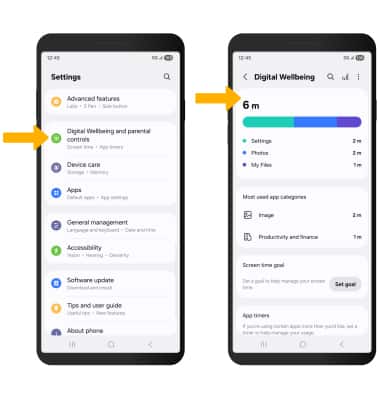
Enable or disable Focus mode
1. From the Settings screen, select Modes and Routines, then select the desired option.
Note: For this tutorial, Work was selected.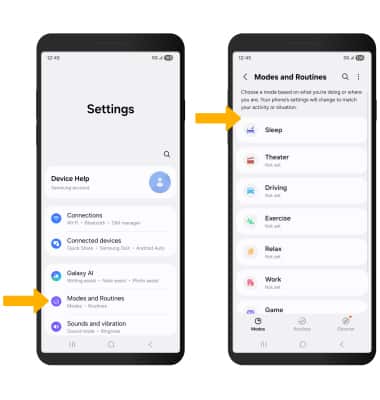
2. Select Start. Select the desired condition to turn on the focus mode, then follow the prompts to edit settings as desired. When finished, select Next.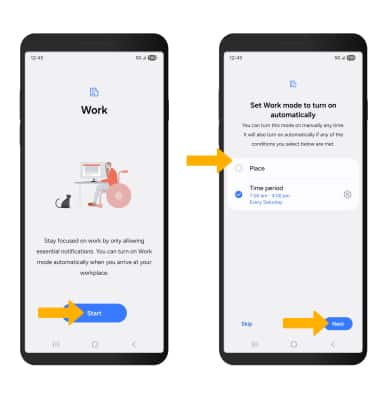
3. You will not receive calls and notifications from apps when the device is in Do not disturb mode. To allow notifications from certain callers and apps, select Do not disturb. Select Calls and messages or App notifications. Edit Do not disturb settings as desired, then select Done.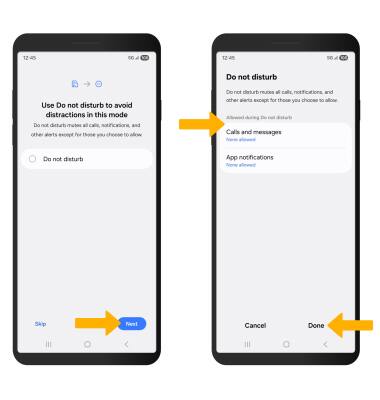
4. Select Next. Select the desired option to edit settings as desired, then select Next.
Note: If prompted, edit focus mode settings for your watch as desired, then select Done.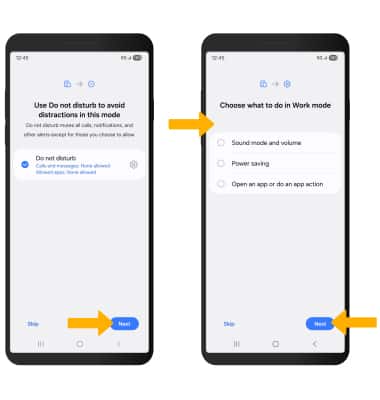
5. To manually turn on Focus mode, select Turn on. To disable Focus mode, select Turn off.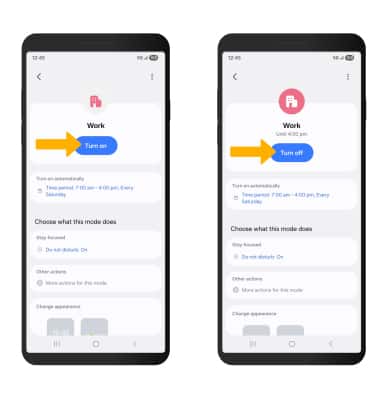
Set app time limits
1. From the Digital Wellbeing & parental controls screen, scroll to and select App timers. Enter the desired timer name.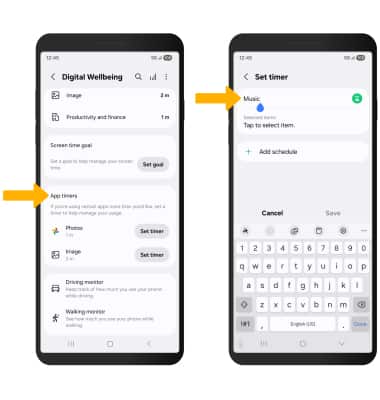
2. Select Tap to select item, then select the circle(s) next to the desired apps. When finished, select Done.
Note: Timers are not available for certain system apps.
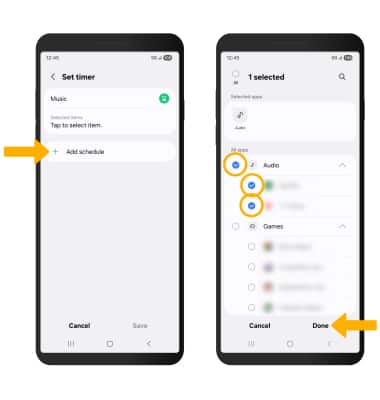
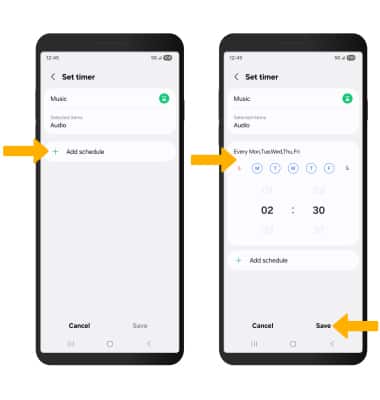
3. Select Add schedule. Edit the schedule as desired, then select Save.
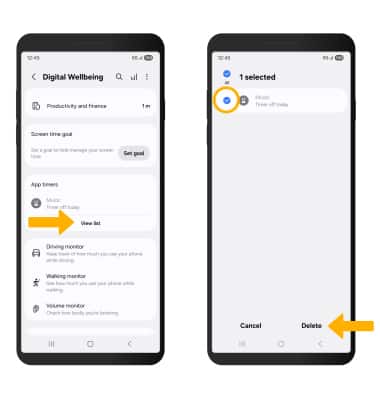
4. To delete a timer, from the Digital Wellbeing screen, select View list under App timers. Select and hold the desired app timer, then select Delete.
Note: You will be prompted to select Delete again to confirm.
Access and use Sleep mode
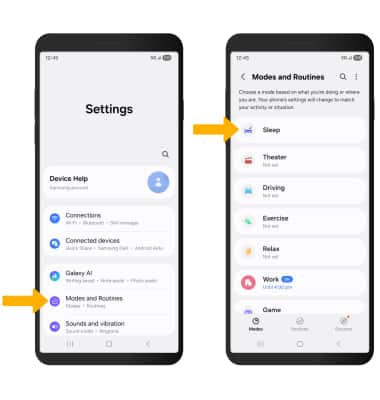
1. Enabling Bedtime mode will automatically darken your screen and set your phone to Do Not Disturb during sleeping hours. From the home screen, swipe down from the upper right corner of the screen, then select the Settings icon. Select Modes and Routines, then select Sleep.
Note: If it is your first time accessing Sleep mode, select Start to begin.
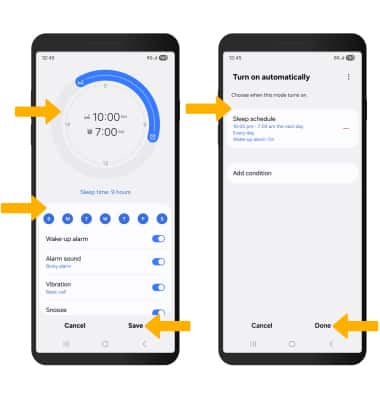
2. Select Turn on automatically, then select Sleep schedule.
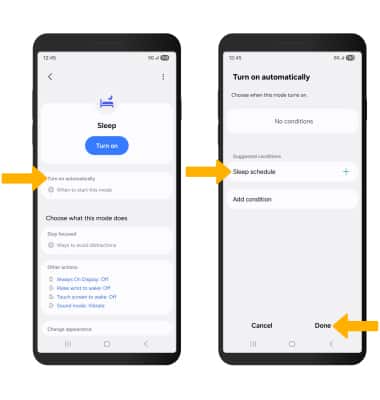
3. Set the time as desired and edit the schedule as desired then select Save. Edit sleep mode settings as desired, then select Done.
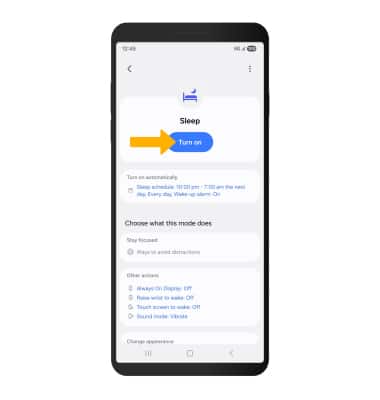
4. To turn on Sleep mode manually, select Turn on.
Note: To turn off Sleep mode, select Turn off.
Enable or disable Do not disturb
Swipe down from the upper right corner of the screen to access Quick Settings. Swipe down from the icon section of the Quick Settings screen to access additional buttons. Select the  Do not disturb icon.