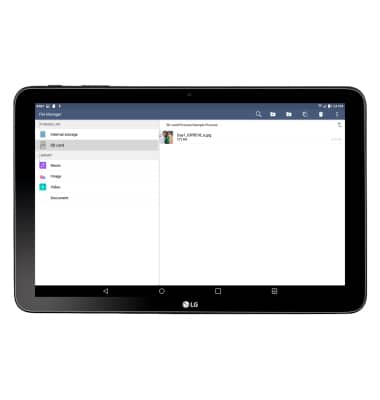
Backup and restore with memory card
Backup and restore with memory card
Backup contacts, photos, and files to increase device memory or transfer to another device.
INSTRUCTIONS & INFO
- Inserting a memory card into your device allows you to transfer and store contacts, music, pictures, and videos.
Note: Memory cards are sold separately.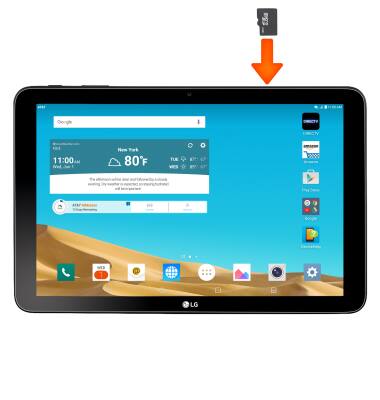
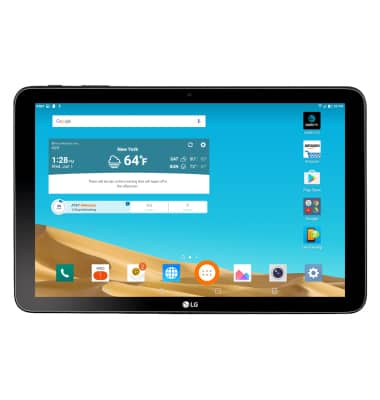
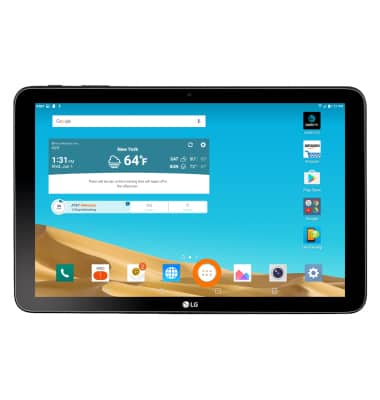
- To copy contacts to the SD card, from the home screen, tap the Apps icon.
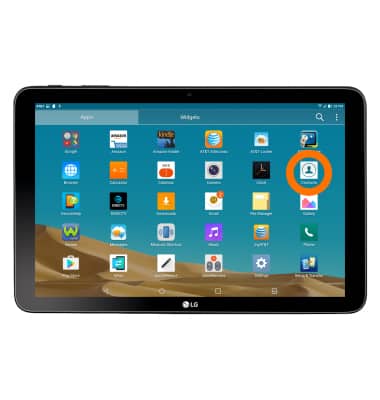
- Tap Contacts.
- Tap the Menu icon.
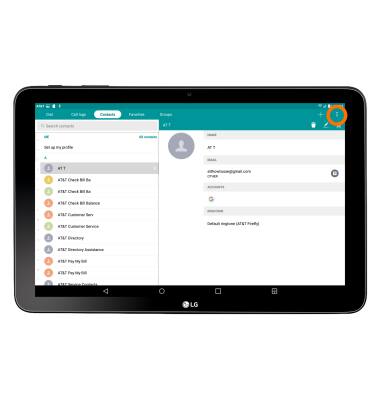
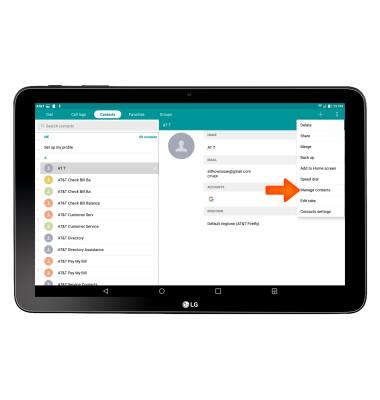
- Tap Manage contacts.
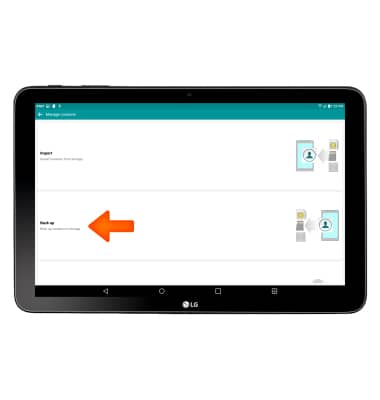
- Tap Back up.
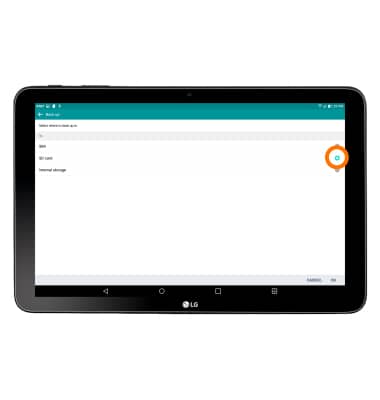
- Select the Desired location to back up contacts to, then tap OK.
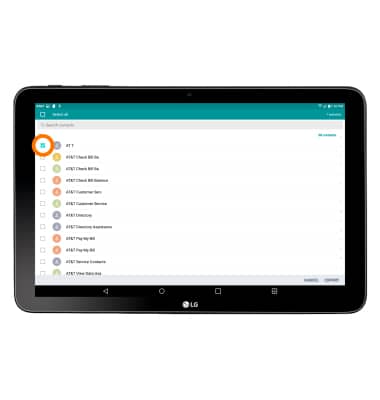
- Select the Desired contacts (or tap Select all to copy all contacts), then tap EXPORT.
- To backup media, from the home screen, tap the Apps icon.
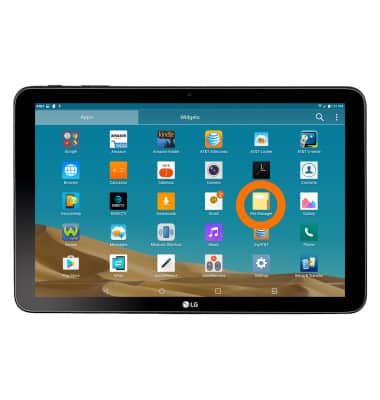
- Tap File Manager.
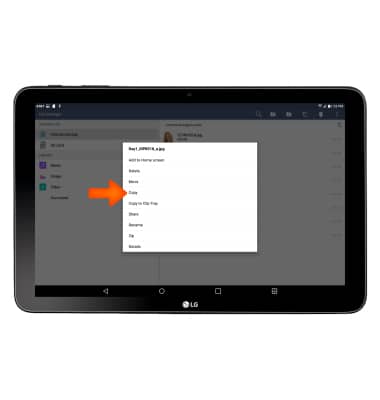
- Navigate to, then touch and hold the Desired file.
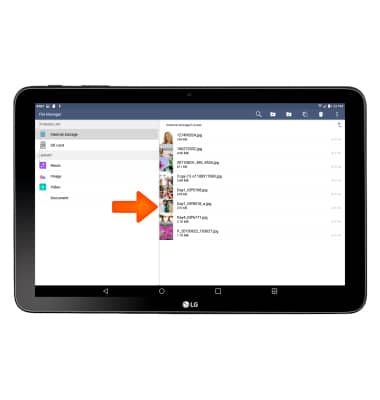
- Tap Copy.
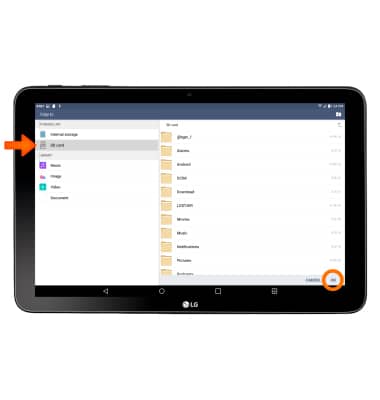
- Tap SD card then tap OK to copy the files to the desired location.
- Any media transferred to the microSD card can be accessed through the File Manager after it has been inserted in another device.