Software Version
Software Version
Determine your current device software version and check for updates.
INSTRUCTIONS & INFO
 The images and steps in this tutorial reflect software version Android 7.1. Stay current by regularly checking for software updates, which often include important security patches and performance enhancements. Use the AT&T Device Help app to quickly confirm whether your device is up to date. Before downloading updates, ensure you’re connected to a reliable Wi-Fi or cellular network for a smooth experience.
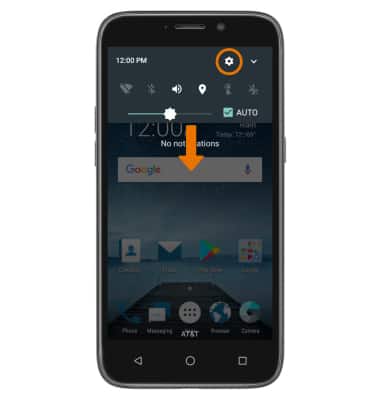
- Swipe down from the Notification bar, then select the Settings icon.
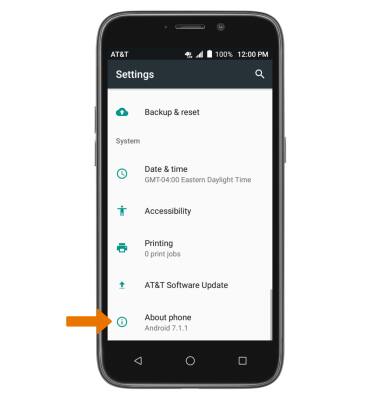
- Select About phone.
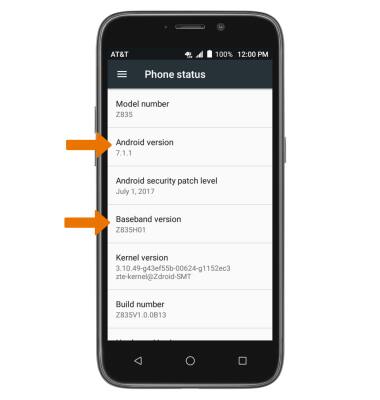
- Here you can view the Android version and Baseband version.
- CHECK FOR SOFTWARE UPDATES: From the Settings screen, select AT&T Software Update.

- Select Check for Updates.
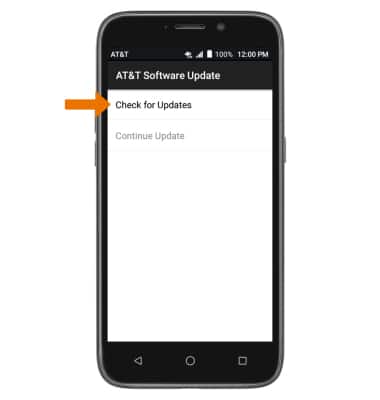
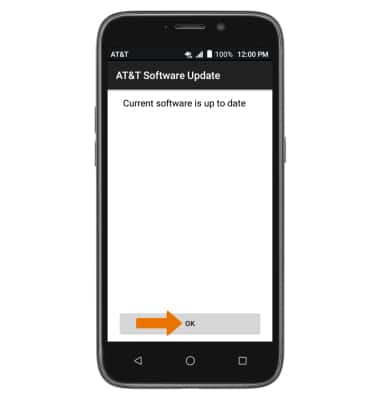
- If an update is available, follow the on-screen instructions to perform the update. If an update is not available, select OK.