Troubleshoot your internet
My gateway
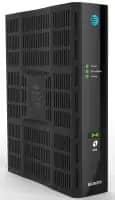
Internet equipment
You can fix many common internet issues by restarting your All-Fi Hub®, Wi-Fi gateway, or modem. Here’s how:
- Unplug the power cord from the back of your device. If you have:
- An internal battery backup, remove it.
- DSL service, unplug your telephone cord from your modem or gateway.
- Wait 20 seconds.
- Put the internal battery back in, if applicable.
- Plug the power cord back in. If you have DSL service, reconnect the telephone cord.
- Wait for the gateway or hub to restart. This can take up to 10 minutes.
Equipment status lights
The status lights on your device give you valuable info about your internet status.
Service outages
Sometimes widespread issues affect entire areas. Find out if there’s a wireless or internet outage affecting your service.
Check for outages
FYI: Look for wireless outages if you have Internet Air.
Browsing or connection issues
Having trouble checking your email online or going to your favorite web pages? We can help. Have your AT&T ID and password handy to sign in.
Fix slow browsing issues
Internet connections
If you have a new device or just need your Wi-Fi info, we can help:
Issues with other services
Streaming video? Listening to your favorite tunes? Each connected device in your home uses your internet and affects its speed.
Optimize your connection