 To access Visual Voicemail, you must have already
 In this tutorial, you will learn how to:
• Access & listen to a voicemail
• Access voicemail options
When a new voicemail is received, the  Voicemail icon will appear in the Notification bar.
Access & listen to a voicemail
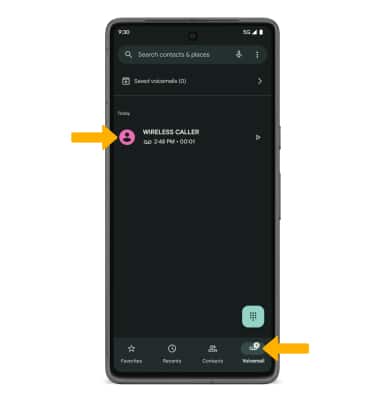
• ACCESS: From the home screen, select the  Phone app, then select the
  Voicemail tab.
• LISTEN: Select the desired voicemail message.
Access voicemail options
Select the corresponding icon.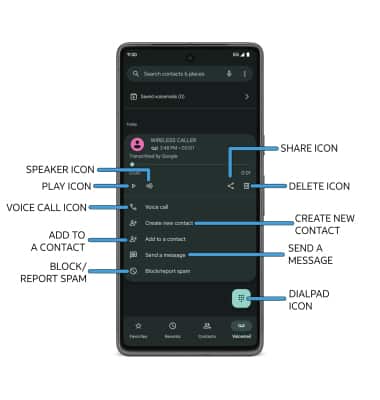
• PLAY/PAUSE: Select the Play icon to play the message. Select the Pause icon to pause the message.
• SPEAKER: Select the Speaker icon to enable or disable speaker mode.
• SHARE: Select the Share icon to share the voicemail.
• DELETE: Select the Delete icon to delete a voicemail.
• CALL BACK: Select Voice call or Video call to call back the phone number with audio or video.
• SEND A MESSAGE: Select Send a message to send a Chat message.
• BLOCK/REPORT SPAM: Select Block/report spam to report call as spam or block a caller. You will no longer receive calls or texts from this number.
• DIALPAD: Select the Dialpad icon to type in a phone number to call.
Note: View Access voicemail messages for tips to manage your voicemail. Go to Troubleshoot Voicemail for solutions to common voicemail problems.