Access Voicemail
Check your voicemail messages.
 To access Visual Voicemail, you must have already Set Up Voicemail. Alternatively, you can check your voicemail messages by selecting the Phone app from the home screen > dialpad icon > select and hold the 1 key > if prompted, enter your voicemail password > follow the prompts to listen to your messages. If you have forgotten your existing voicemail password, you will not be able to access voicemail until you reset your voicemail password.
In this tutorial, you will learn how to:
• Access and listen to a voicemail
• Access voicemail options
When a new voicemail is received, the  Voicemail icon will appear in the Notification bar.
Access and listen to a voicemail
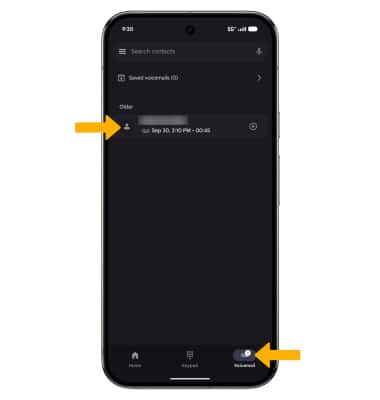
• ACCESS: From the home screen, select the  Phone app, then select the Voicemail tab.
• LISTEN: Select the desired voicemail message.
Note: Alternatively, you can check your voicemail messages by selecting the Phone app from the home screen > select and hold the 1 key > if prompted, enter your voicemail password > follow the prompts to listen to your messages.
Access voicemail options
Select the corresponding icon.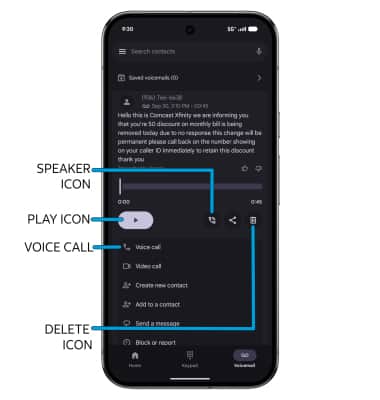
• PLAY/PAUSE: Select the Play icon to play the message. Select the Pause icon to pause the message.
• SPEAKER: Select the Speaker icon to enable or disable speaker mode.
• DELETE: Select the Delete icon to delete a voicemail.
• CALL BACK: Select Voice call to call back the phone number.
Note: Go to Troubleshoot Voicemail for solutions to common voicemail problems.