In the box
You’ll find these in your set up box:
- 5G Gateway with a preinstalled SIM card
- Power supply unit
- Quick start guide
- Safety information guide
Get started
- Place your 5G gateway in a location a location that will provide the best connection for your internet service. We recommend placing it on a shelf, near a window away from other electronics.
- Plug one end of the power supply into the gateway and the other end into a power outlet.
- Wait for the gateway to connect to the AT&T mobile network. This can take around 3-5 minutes.
- Check your 4G and 5G LED status lights to make sure you have the best signal.
- 4: Strong signal
- 3: Fair signal
- 1-2: Weak signal
FYI: If you have a weak signal, check your gateway placement or get personalized help.
Status light details
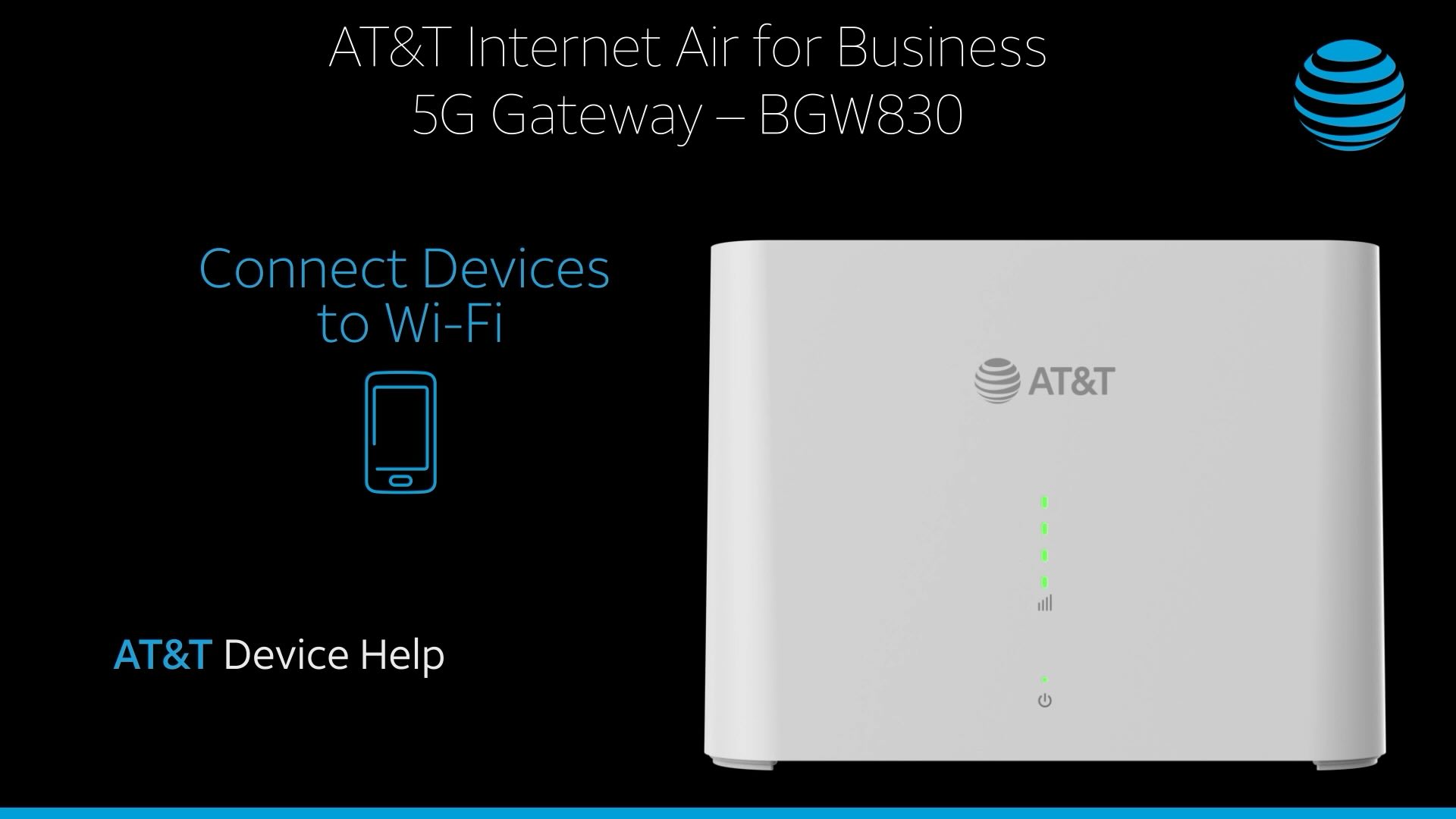
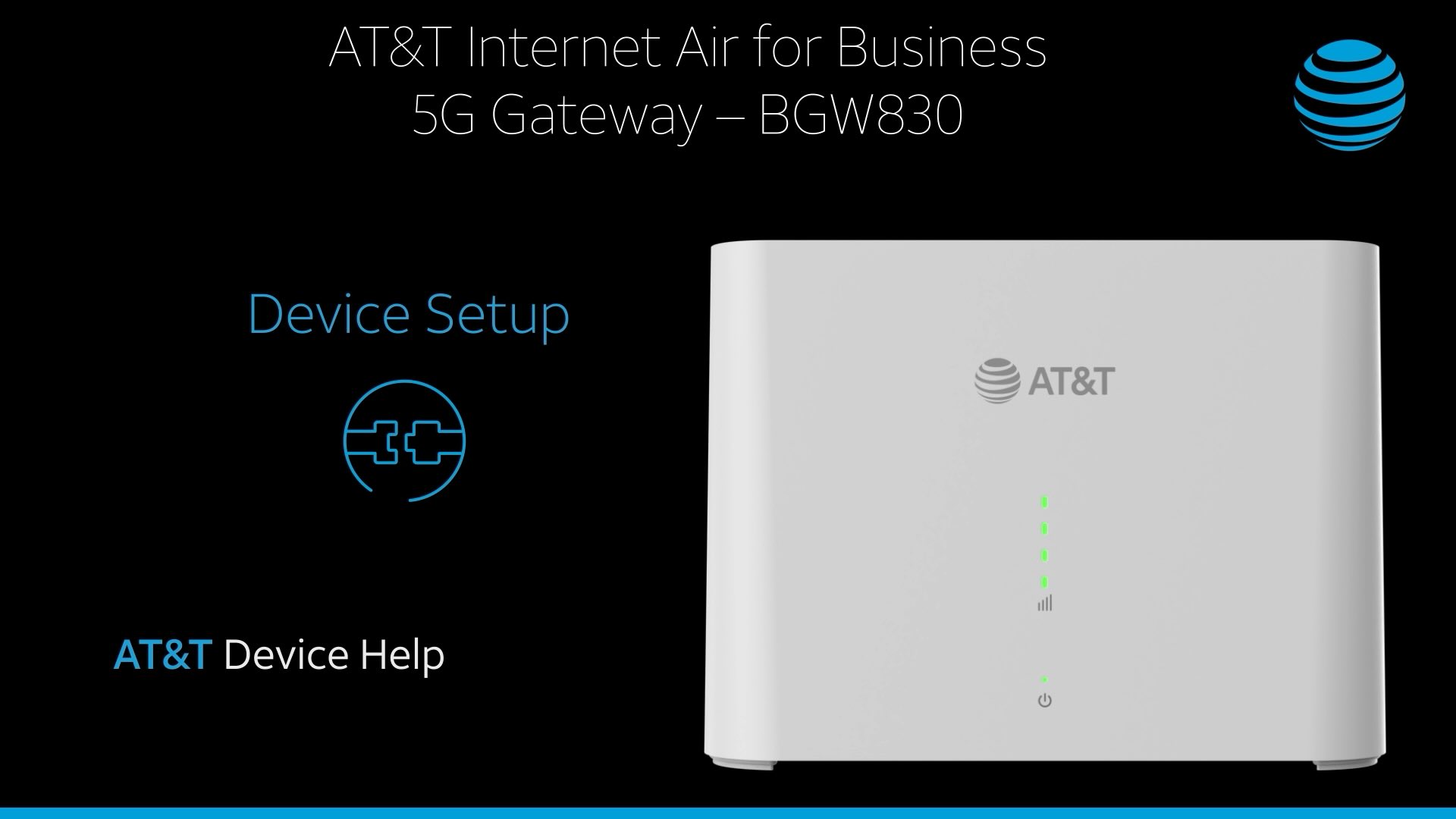
The front of your 5G Gateway has five lights: one power and four signal indicators. Review the PDF to get all info related to the lights on your hub.
- Green (solid): The number of lights indicates your signal. If you only have one or two green lights, you should check for a better location.
- Amber (chasing): Your gateway is looking for the best signal tower.
- Amber (blinking): Your gateway has an error. Count the number of blinking lights to determine your error code.
- One (E004): No IP address
- Two (E400): SIM error
- Three (E403): Authentication failure
- Four (E013): DNS down
- Off: If all signal indicator lights are off and the power button is red, there’s no connection to the 5G cellular network (E405).
Device Setup
Learn how to Set up your Device and the Optimal Gateway Placement.
Device Setup
0:00