
In this tutorial, you will learn how to:
• Enable Windowed Apps
• Open an App
• Adjust window size
• Close a window
• Access Split View via controls at top of screen
Enable Windowed Apps
1. From the home screen, select the  Settings app.
2. Select Multitasking & Gestures, then select Windowed Apps.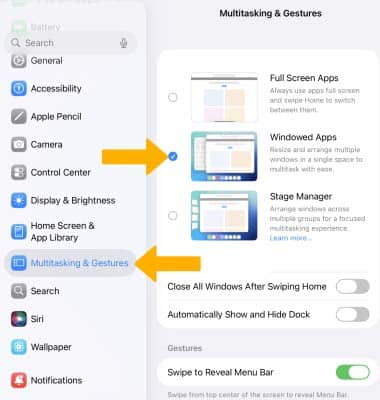
Open an App
1. Open a desired app.
Note: For this demonstration, the  Calendar app was selected.
2. Swipe down from the top of the screen, then select the  Menu icon.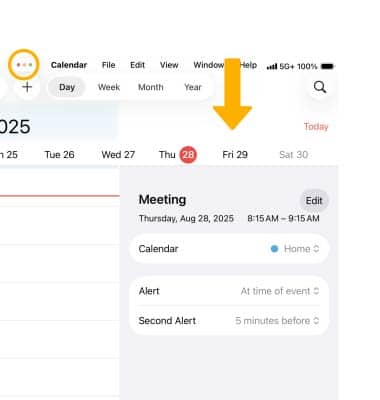
3. Select the Exit Full Screen icon.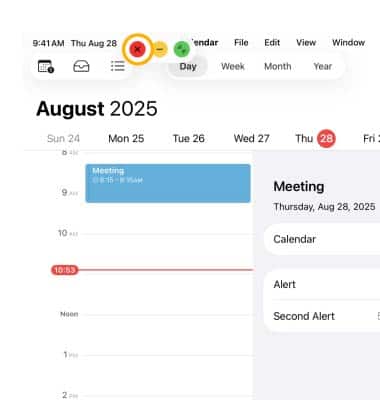
4. When an app is in windowed mode, you can move the app from side to side or up and down by selecting and dragging the top of the window to the desired location. You can resize the window by selecting and dragging the Corner icon in the bottom right of the app.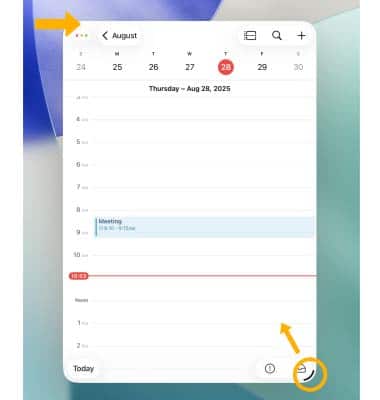
View apps side by side
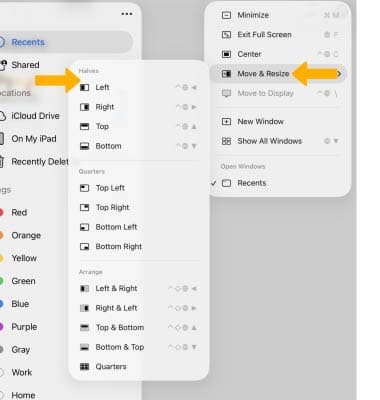
To view apps side by side, swipe down from the top of the screen, then select Window. Select Move & Resize, then select the desired arrangement. Repeat this step with the desired app(s).
Close a window
From the desired Windowed app, select the Windowed Menu icon, then select the Close icon.
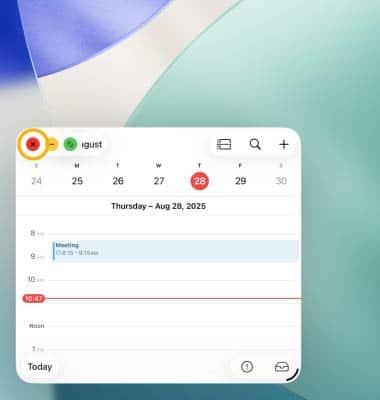
Windowed Menu icon, then select the Close icon.