Wi-Fi Connection Details
Wi-Fi Connection Details

View the Wi-Fi connection details for your device.
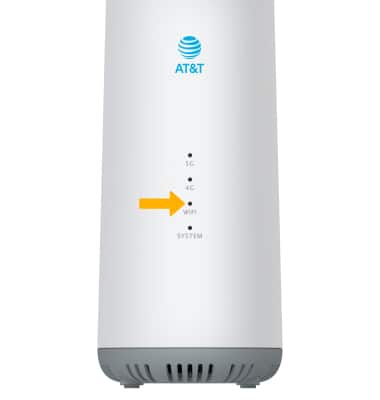
1. The 5G Gateway will display a green Wi-Fi status light when a Wi-Fi connection is available.
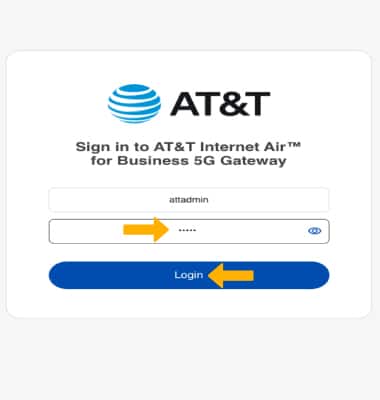
2. From your connected device's web browser, go to http://attwifi.manager or https://192.168.1.1. Enter your password, then click Login.
Note: Ensure that your device is connected to the 5G Gateway's Wi-Fi network. For more information, please see the Connect Devices to Wi-Fi or Connect PC or Mac to Wi-Fi tutorials. If you haven’t logged into the Web admin page before, the default password will be ‘admin’. You may be prompted to change the admin password.
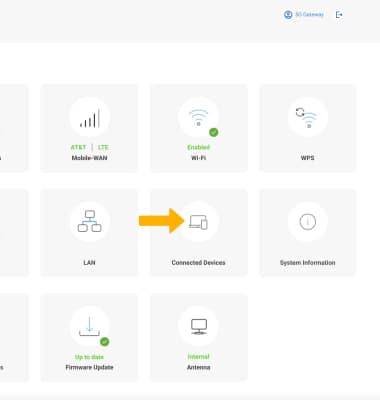
3. From the web manager's dashboard, click Connected Devices.
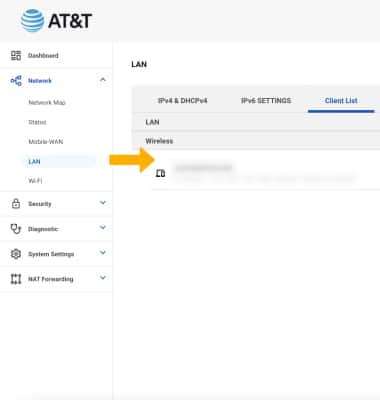
4. Connected devices will be displayed under Client List.