Advanced Photo & Video Features
Advanced Photo & Video Features

To access the Camera, from the home screen, select the  Camera app. You can also press the Side button twice or swipe up from the Camera icon on the lock screen.
In this tutorial, you will learn how to:
• Access camera modes and filters • Customize photo and video settings • Turn shutter sound on/off • Crop a photo
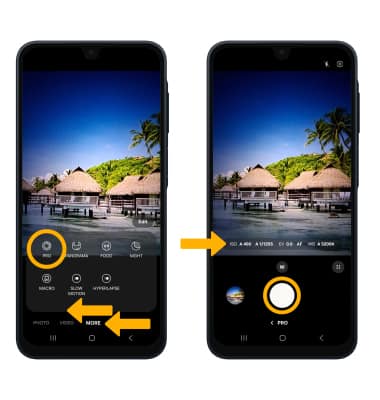
• Access and use Pro mode
Access camera modes and filters
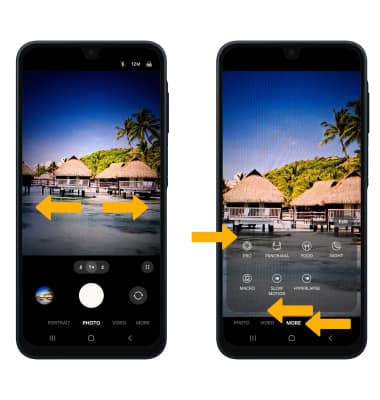
From the Camera app, swipe left or right to access camera modes. To access additional camera modes such as Pro, Macro,and Panorama, swipe left to MORE then select the desired option.
Note: Pro allows you to manually adjust settings such as ISO, shutter speed and exposure levels. Panorama allows you to create wider photos by stitching together multiple photos. Macro allows the users to capture objects from close distance. When this mode is enabled it switches the camera into a special close focus mode and many allow you to get less than 10 cm from the subject.
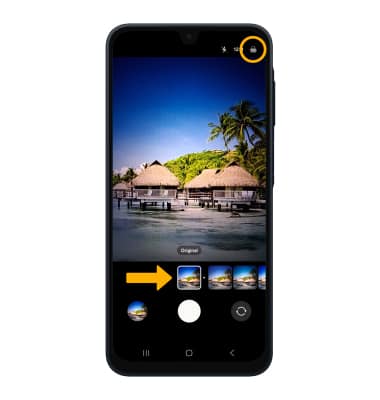
To access filters, select the

Filters icon then select the desired filter.
Note: Filters are not available in some camera modes.
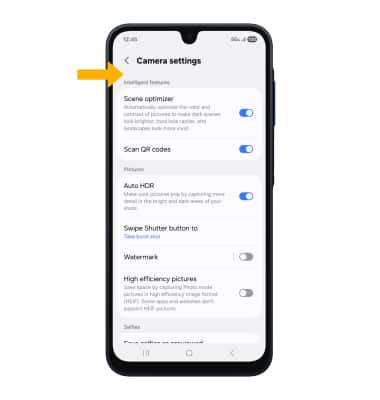
Customize photo and video settings
From the Camera app, select the

Quick control icon then select the

Settings icon. Edit settings as desired.
Turn shutter sound on/off
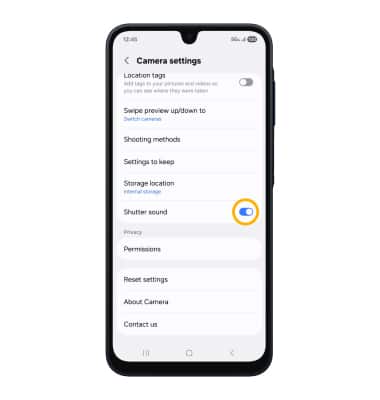
From the Camera settings screen, scroll to and select the Shutter sound switch.
Crop a photo
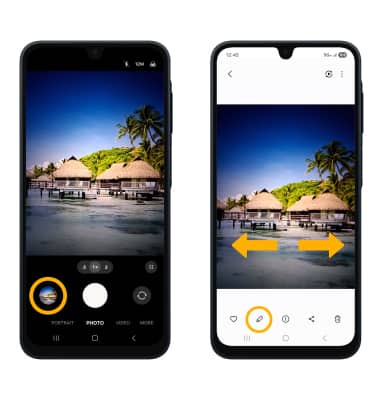
1. From the Camera app, select the Gallery icon. Swipe left to the desired photo, then select the Edit icon.
Note: Alternately, from the home screen, select the  Gallery app then navigate to and select the desired photo.
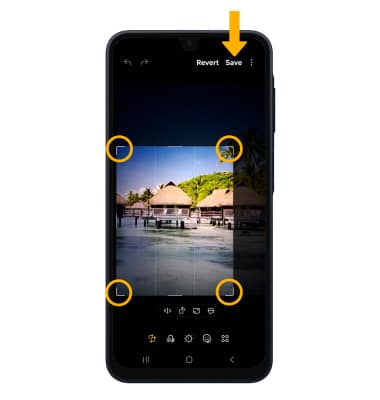
2. Select and drag the crop corners to crop as desired, then select Save.
Access and use Pro mode
From the Camera screen, swipe left to MORE, then select PRO. Adjust settings such as ISO, shutter speed and exposure levels as desired then select the Capture icon.