Connect Devices to Wi-Fi
Connect Devices to Wi-Fi

Connect a smartphone or tablet to the 5G Gateway Wi-Fi network.
In this tutorial, you will learn how to:
• Connect a smartphone to Wi-Fi
• Connect a tablet to Wi-Fi
When a device is connected to the AT&T BGW830, the  Wi-Fi connected icon will display in the Notification bar.
Connect a smartphone to Wi-Fi
- From the desired phone’s home screen, swipe down from the upper right corner of the screen, then select and hold the
 Wi-Fi icon.
 - Select the Wi-Fi switch to enable, then select the AT&T BGW830 Wi-Fi network.
Note: The AT&T BGW830s default Wi-Fi name is displayed on the back label of the device.
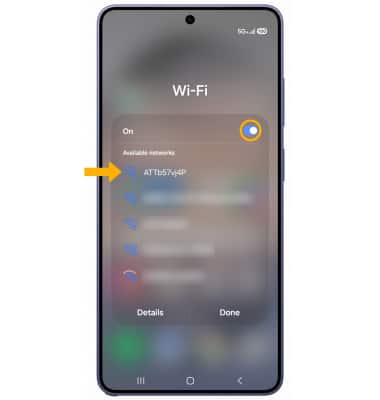
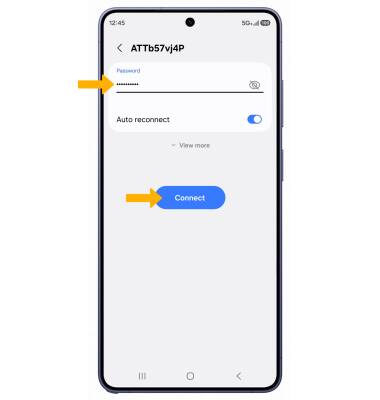
3. Enter the network Password, then select Connect.
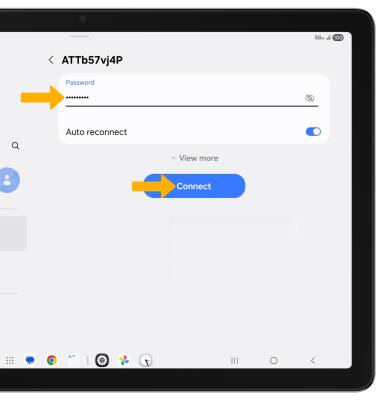
Connect a tablet to Wi-Fi
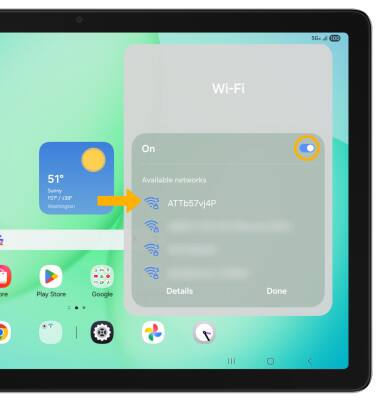
- From the desired tablet's home screen, swipe down from the upper right corner of the screen, then select and hold the Wi-Fi icon.
- Select the Wi-Fi switch to enable, then select the AT&T BGW830 Wi-Fi network.
Note: The AT&T BGW830s default Wi-Fi name is displayed on the back label of the device.
3. Enter the network Password, then select Connect.