In this tutorial, you will learn how to:
• Download and access Family Link
• Lock and unlock device
• Set daily limit
• Set downtime
• Set app limit
• Access Family Link settings
Download and access Family Link
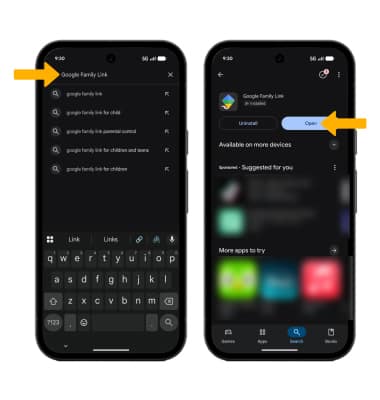
1. To download, from the home screen, select the  Play Store app > search for Google Family Link > select Google Family Link > Install > Open.
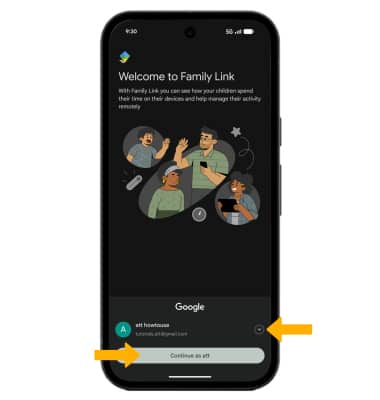
2. Select Continue as to sign into the Google account registered on the device, or select the drop-down arrow and select Add another account.
Lock and unlock device
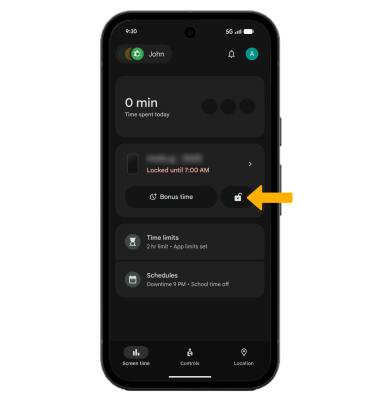
To lock a device on your account, select Lock next to the desired device.
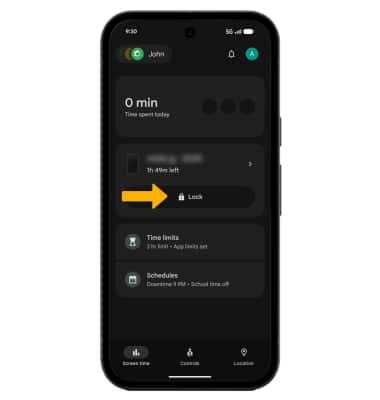
To unlock a device on your account, select Unlock icon next to the desired device.
Set daily limit
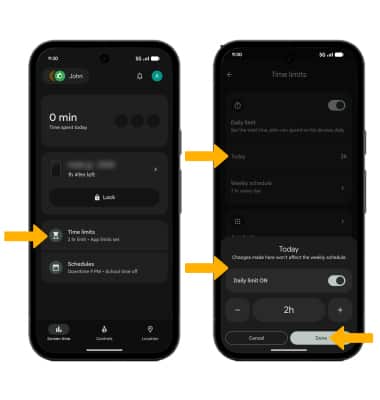
CHANGE FOR TODAY: To change the daily limit for today, select Time limits. Select Today, then adjust the time limit as desired, then select Done.
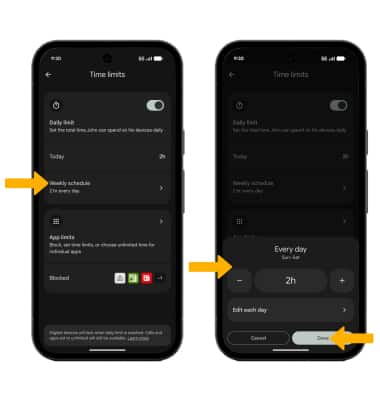
EDIT WEEKLY SCHEDULE: To change the daily limit for the week, from the Time limit screen select Weekly schedule > the desired day(s) > adjust settings > Done.
Set downtime
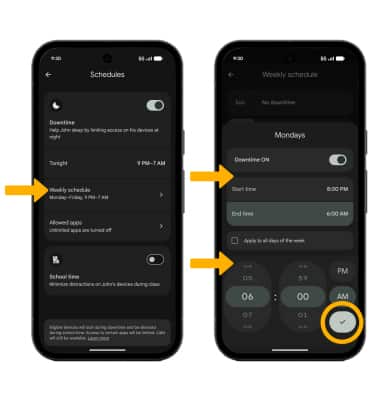
CHANGE FOR TODAY: To change the downtime for today, select Schedules. Select Tonight > Downtime ON switch > select the desired Start and End time, then select Done.
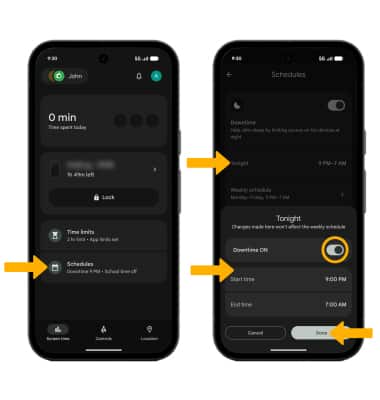
EDIT WEEKLY SCHEDULE: To change the downtime for the week, select Weekly schedule > the desired day(s) > adjust settings > Checkmark icon.
Set app limit
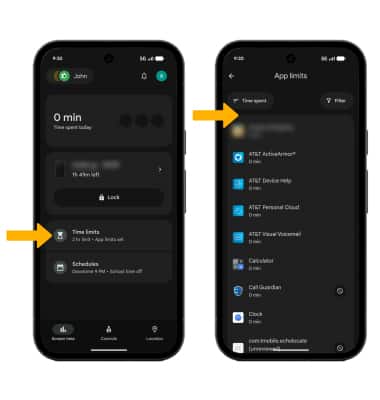
1. From the Family Link screen, select Time limits > App limits > desired app.
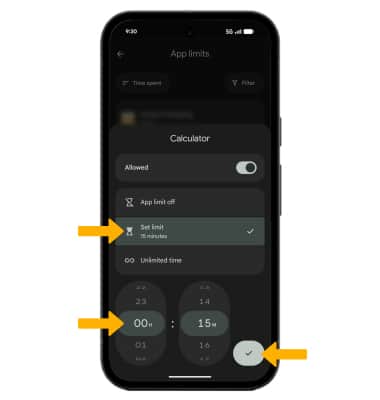
2. Select Set limit. Adjust the time as desired, then select the Checkmark icon.
3. To delete an app time limit, select the hour time icon next to the desired app.
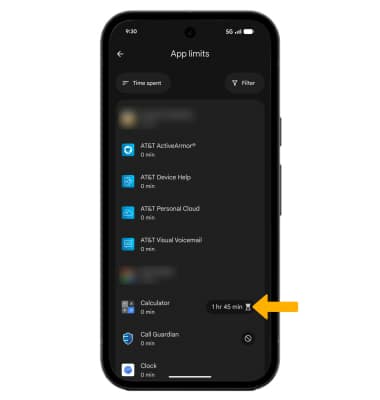
4. Select App limit off, then select Done.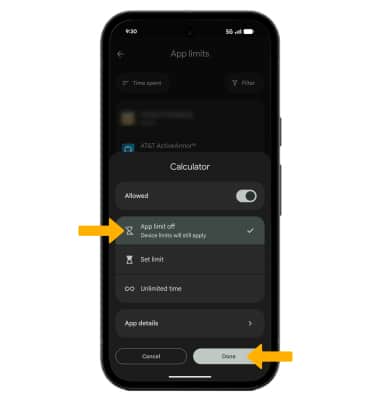
Access Family Link settings
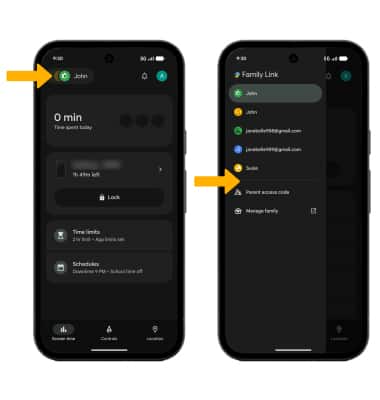
From the Family Link screen, select the Kids account icons. Select the desired option to edit Family Link settings as desired.