In this tutorial, you will learn how to:
• Restrict internet access for application
• Block a website
• Add or remove a device
Restrict internet access for application
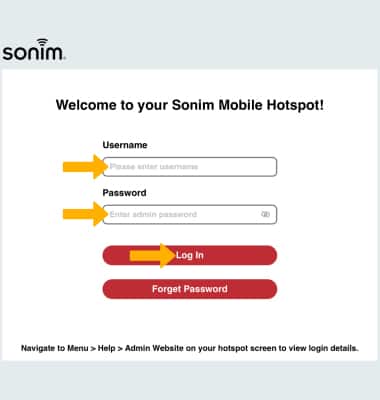
1. From your device's web browser, go to http://sonim.mobilehotspot. Enter your Username and Password, then click Log In.
Note: Ensure that your device is connected to the Sonim MegaConnect's Wi-Fi network. For more information, please visit the Connect Devices to Wi-Fi or Connect PC or Mac to Wi-Fi tutorials. If you haven’t logged into the Web admin page before, the default password will be ‘admin’. You may be prompted to change the admin password.
2. Click Settings.
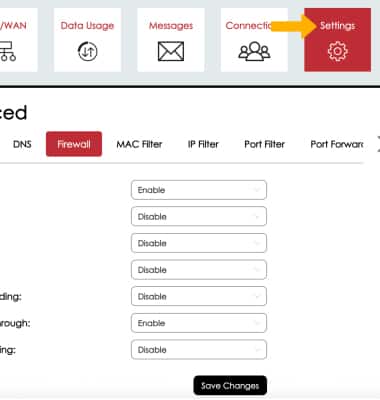
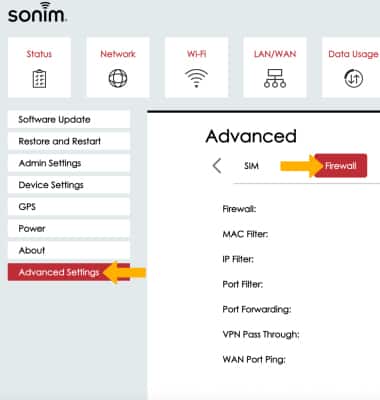
3. Click the Advanced Settings menu, then click the Firewall tab.
3. Click the Advanced Settings menu, then click the Firewall tab.
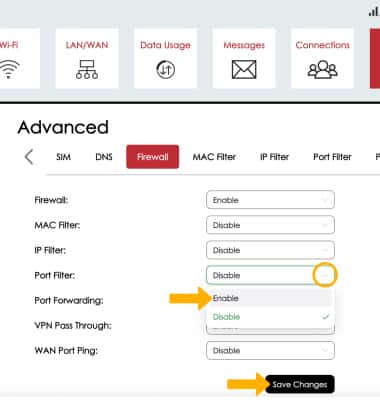
4. Click the drop-down menu next to Port Filter. Click Enable, then click Save Changes.
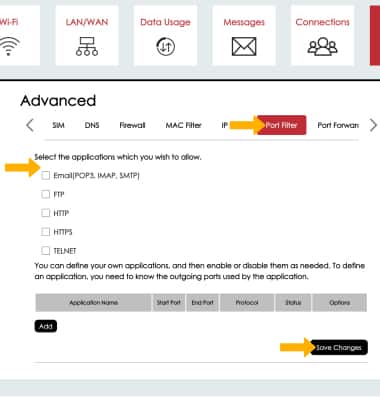
5. Click the Port Filter tab. Edit the desired settings, then click Save Changes.
Block a website
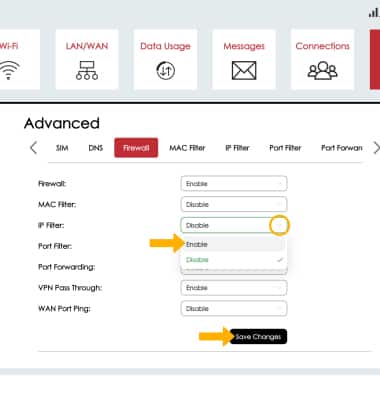
1. From the Firewall tab, click the drop-down menu next to IP Filter. Click Enable, then click Save Changes.
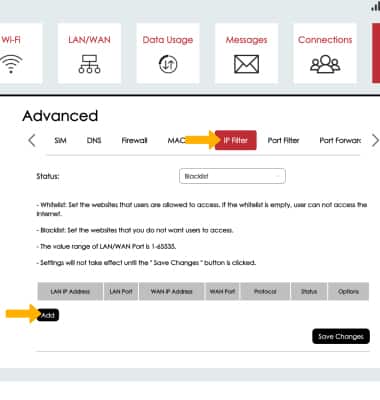
2. To block a website, click the IP Filter tab, then click Add.
Note: Ensure that the status is set to Blacklist.
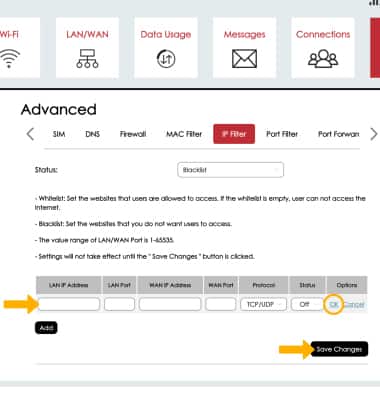
3. Enter in the website's details. When complete, click OK then click Save Changes.
Add or remove a device
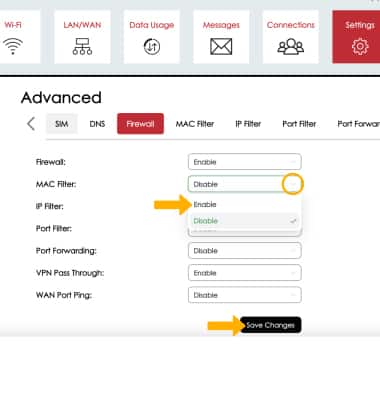
1. From the Firewall tab, click the drop-down menu next to MAC Filter. Click Enable, then click Save Changes.
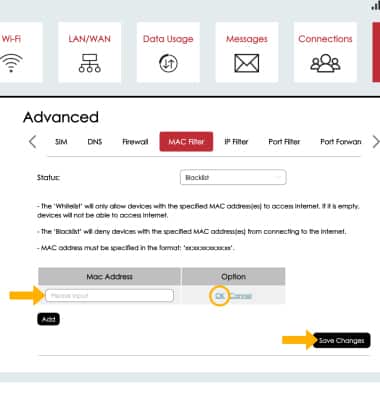
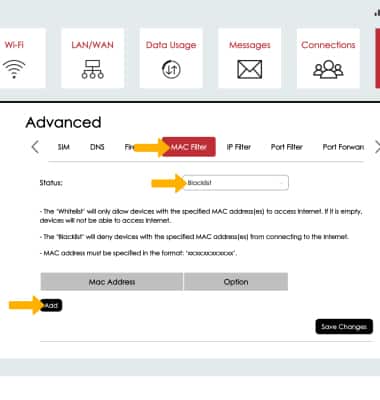
2. Click the MAC Filter tab. Set the desired MAC Filter status, then click Add.
Note: Blacklist will deny devices with the specified MAC address(es) from connecting to the internet. Whitelist will only allow devices with the specified MAC address(es) to access the internet. If the Whitelist is empty, devices will not be able to access the internet.
Note: Blacklist will deny devices with the specified MAC address(es) from connecting to the internet. Whitelist will only allow devices with the specified MAC address(es) to access the internet. If the Whitelist is empty, devices will not be able to access the internet.
3. Enter in the device's MAC address. When complete, click OK then click Save Changes.
Note: To remove a device, click Delete next to the desired device.