Wi-Fi Network Name & Password
Wi-Fi Network Name & Password

-
From a device that is connected to the AT&T Wireless Internet network, open the web browser then go to http://att.wirelessinternet. Enter the Admin Login, then click Login.
Note: The default admin login is attadmin. The admin login can be found on the bottom of the device.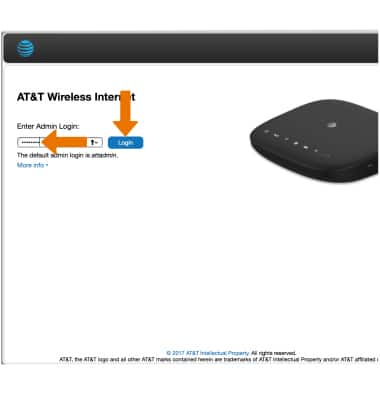
-
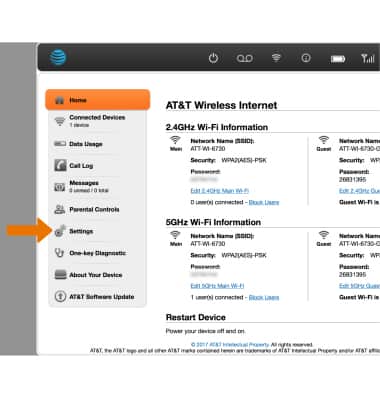
Click Settings.
-
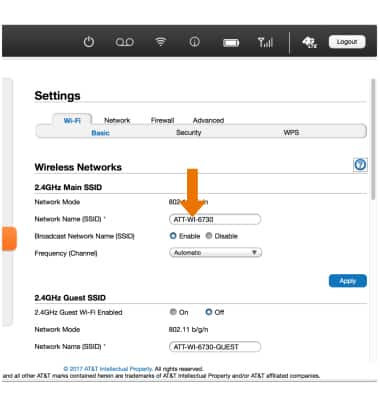
The Wi-Fi network name will be displayed in the Network Name (SSID) field.
-
To change the network name, type a new name directly into the text box.
Note: The network name may consist of any combination of upper or lower case letters and/or numbers and may include spaces, underscores, or hyphens.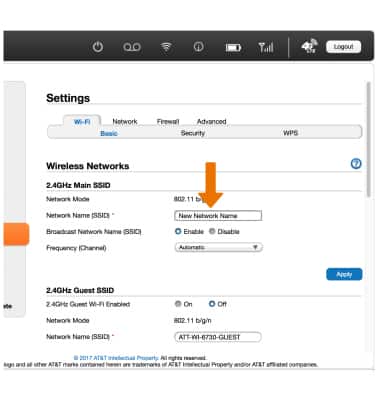
-
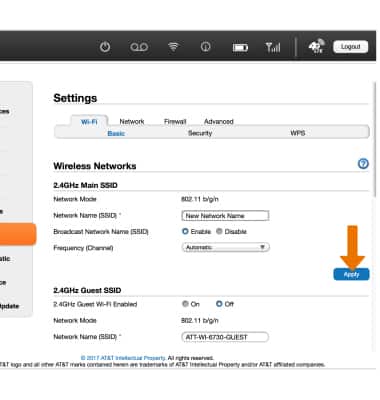
Click Apply.
-
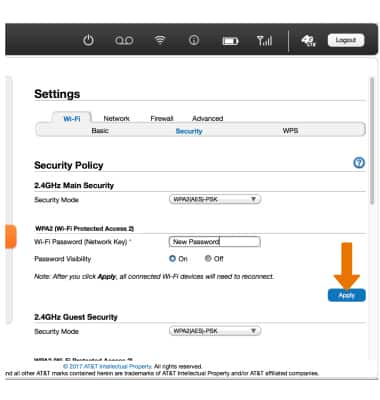
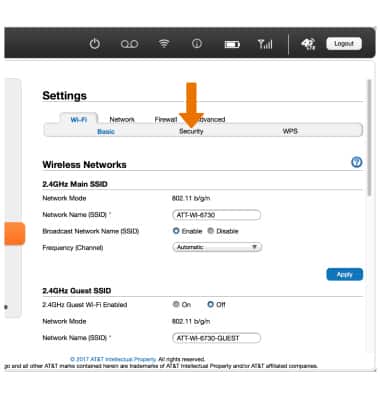
To change or view your Wi-Fi password, click Security.
-
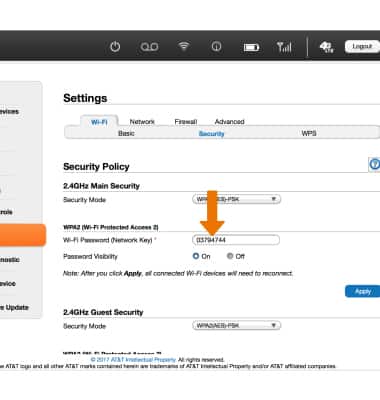
Your current Wi-Fi password will be displayed in the Wi-Fi Password (Network Key) field.
-
To change the password, type a new password directly into the text box.
Note: Password must be at least 8 characters, consisting of upper or lower case letters and at least one number.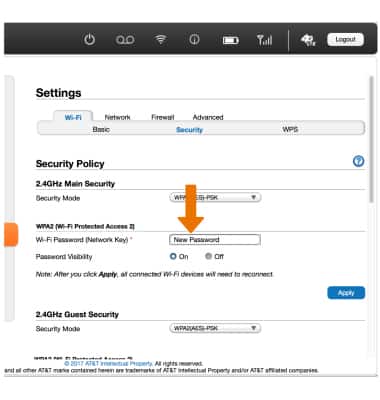
-
Click Apply.