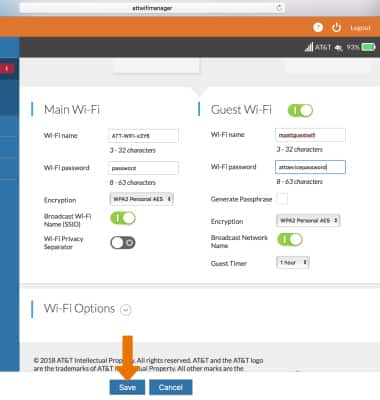
Guest Wi-Fi
Guest Wi-Fi

-
From your device's web browser, go to http://attwifimanager. Enter your Admin Password, then click Login.
Note: Ensure that your device is connected to the AT&T Unite Express 2's Wi-Fi network. For more information, please see the Connect Devices to Wi-Fi or Connect PC or Mac to Wi-Fi tutorials.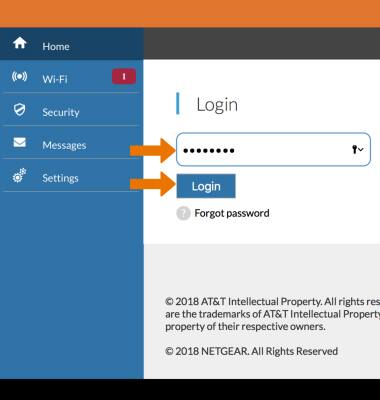
-
Click Wi-Fi then click Options. Click the Guest Wi-Fi Switch.
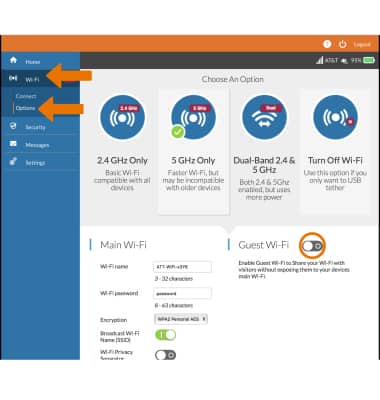
-
Set the Guest Wi-Fi settings as desired then click Save.
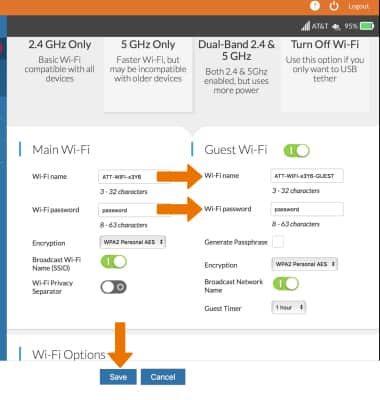
-
Click Save to continue.
Note: The Guest network will be restarted.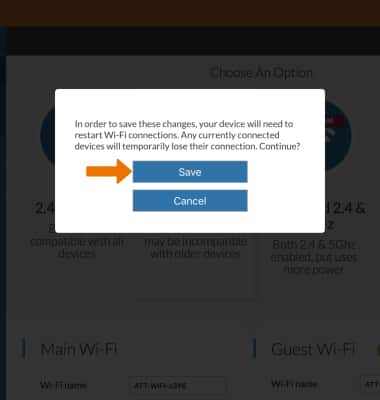
-
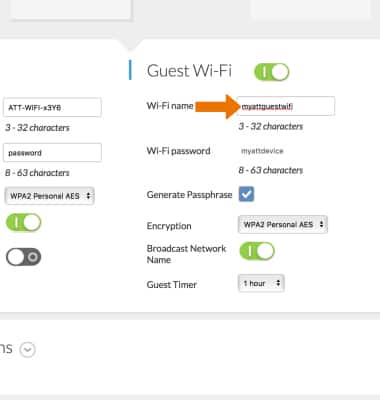
CONFIGURE GUEST WI-FI: To change the Guest Wi-Fi name, from the Guest Network settings screen, click the Wi-Fi Name field then enter the desired name.
-
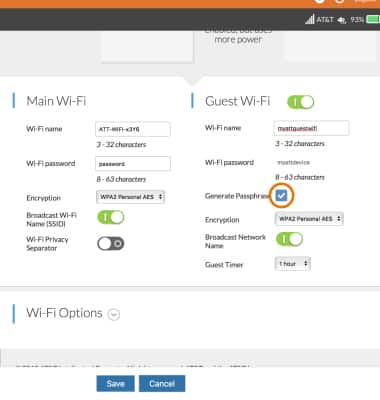
To change the Guest Wi-Fi password, click the Generate Passphrase checkbox.
-
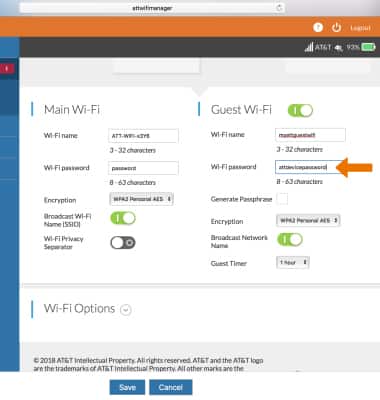
Click the Wi-Fi Password field, then enter the desired password.
-
Click Save to save your changes. The Guest Wi-Fi network is now ready to use.
Note: Click Continue to confirm. The Guest network will be restarted.