Connect PC or Mac to Wi-Fi
Connect PC or Mac to Wi-Fi

In this tutorial, you will learn how to:
• Connect a Mac to Wi-Fi
• Connect a PC to Wi-Fi
Connect a Mac to Wi-Fi
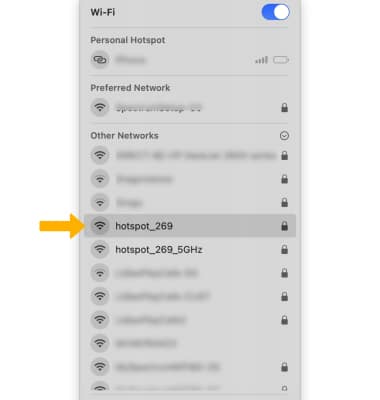
1. From your Mac, click the  Wi-Fi icon in the top right corner of the screen. 2. Click the router's Wi-Fi network.
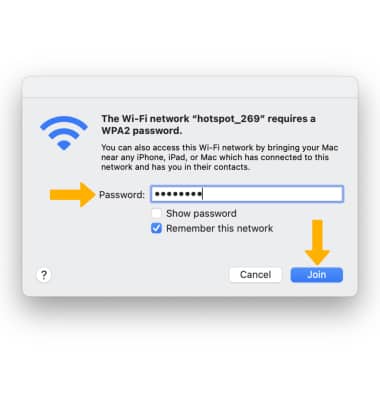
3. Enter the Password, then click Join. Your computer is now connected to the Wi-Fi network.
Note: The router's Wi-Fi name and password are displayed on the AT&T Turbo Hotspot 2's home screen.
Connect a PC to Wi-Fi
1. From your PC, click the Connectivity icon on bottom right of the screen.

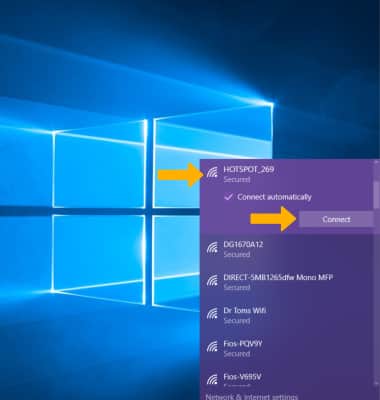
2. Click the router's Wi-Fi network, then click Connect.
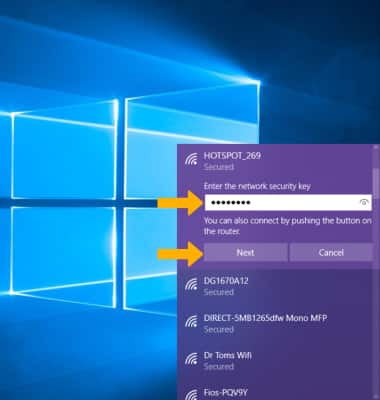
3. Enter the Password, then click Next. Your computer is now connected to the Wi-Fi network.
Note: The router's Wi-Fi name and password are displayed on the AT&T Turbo Hotspot 2's home screen.