Companion App: Location Management
Companion App: Location Management

The AT&T amiGO™ app comes pre-installed on AT&T amiGO™ devices. To pair a smartphone with your AT&T amiGO™ device, you must first install the app on your smartphone. Visit the Download Apps & Games tutorial for instructions on how to download the AT&T amiGO™ app.
In this tutorial, you will learn how to:
• View location
• Add a SafeZone
To access the AT&T amiGO™ app, navigate to and select the  AT&T amiGO™ app.
View location
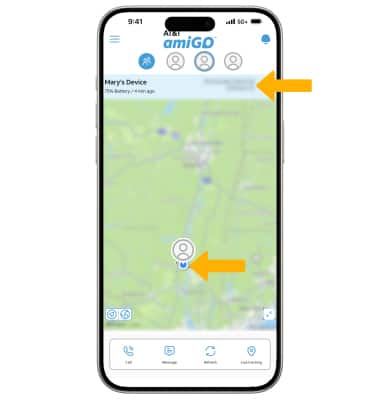
To view a device's location, from the AT&T amiGO™ app on your smartphone, select the desired device. The location of the device will be displayed on the map. The address of the location will be displayed.
Add a SafeZone
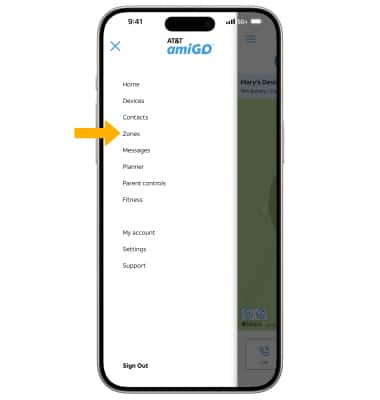
1. From the AT&T amiGO™ app on your smartphone, select the  Menu icon then select Zones.
Note: A SafeZone is a designated area that you can set using the app to monitor your device’s location. The app will notify you automatically whenever your device enters or leaves a SafeZone. You are able to add, modify or remove SafeZones at any time within the app. Please note: Alert notifications for SafeZones may vary depending on your device’s location reporting frequency and network conditions.
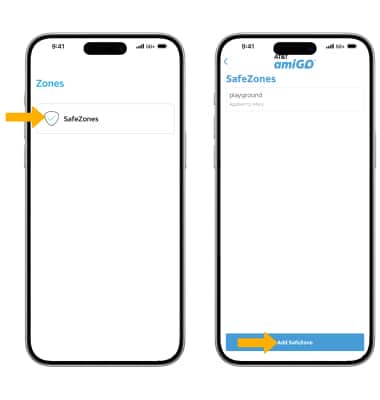
2. Select SafeZones, then select Add SafeZone.
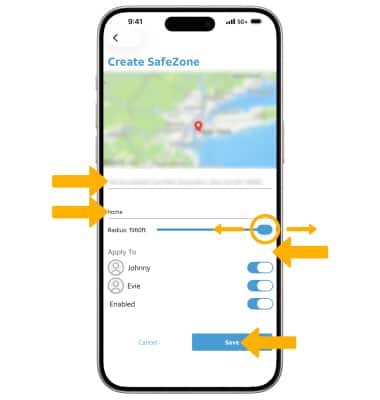
3. Enter the address and zone name of the SafeZone, then select and drag the radius slider to set a desired radius. Select the switch next to the desired device you wish to apply the SafeZone to. When finished, select Save.