Take a Screenshot
Take a Screenshot

For those using the AT&T amiGO™ Jr. Phone, the parent must first provide access to the Gallery in order to edit or share screenshots.
In this tutorial, you will learn how to:
• Take a screenshot
• Edit or share screenshots immediately
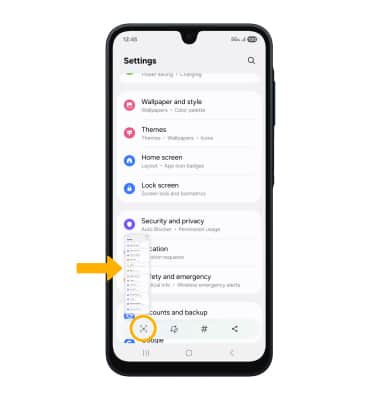
• Capture a scrolling screenshot
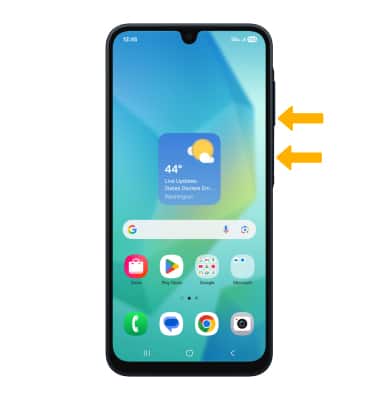
Take a screenshot
Press and quickly release the Power/Lock and Volume down buttons.
Note: To access screenshots,from the home screen, swipe up to access the Apps tray then select the  Gallery app.
Edit or share screenshots immediately
Immediately after taking a screenshot, a toolbar will appear at the bottom of the screen. Select the desired option:
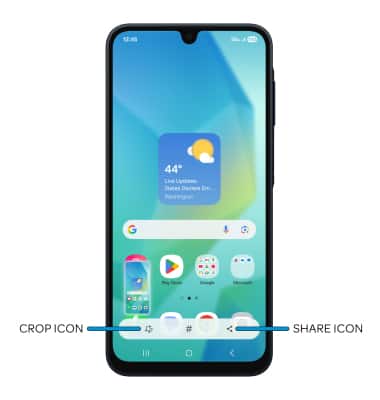
• CROP A SCREENSHOT: Select the Crop icon, then edit screenshot as desired.
• SHARE A SCREENSHOT: Select the Share icon, then follow the prompts to share.
Capture a scrolling screenshot
Immediately after a screenshot is captured on a scrollable screen, select the Scroll Capture icon until the preview shows the desired area being captured.