Connect Using Ethernet
Connect Using Ethernet

In this tutorial, you will learn how to:
• Connect using Ethernet • View Ethernet Port Status • View devices connected via Ethernet
Connect using Ethernet
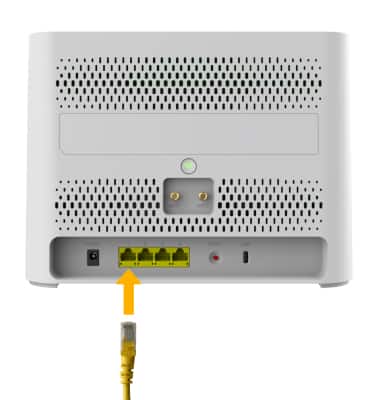
1. To connect to the AT&T BGW830 network using Ethernet, simply plug an ethernet cable into one of the ports on the back of the device.
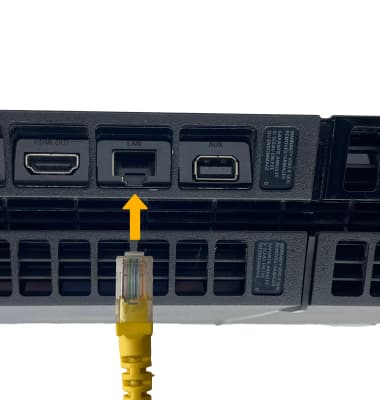
2. Plug the other end of the ethernet cable into the ethernet port on the desired device.
View Ethernet Port Status
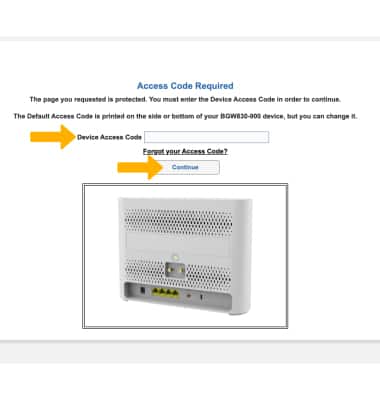
1. From your device’s web browser, go to https://192.168.1.254. Enter your Device Access Code, then click Continue.
Note: Ensure that your device is connected to your AT&T BGW830's Wi-Fi network. For more information, please see the Connect Devices to Wi-Fi or Connect PC or Mac to Wi-Fi tutorials. Enter the access code printed on the label on the back of the device.
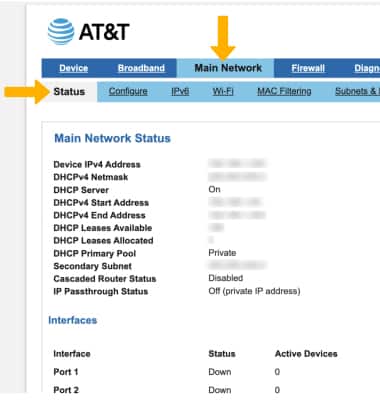
2. From the web dashboard, click Main Network tab, then click Status.
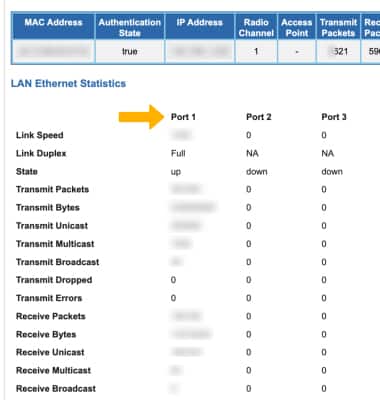
3. Scroll down to LAN Ethernet Statistics to view active ethernet ports.
View devices connected via Ethernet
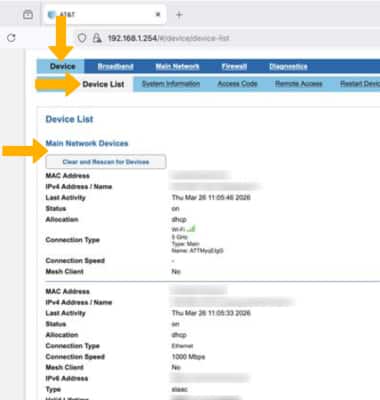
From the web dashboard, click the Device tab then click Device List. Devices connected via Ethernet will be displayed.