Connect a Security Camera
Connect a Security Camera

In this tutorial, you will learn how to:
• Connect a Camera via Wi-Fi
• Connect a Camera via Ethernet
• Complete Camera Configuration
• Access and Monitor Your Camera
Adding a security camera to your AT&T BGW830 is a smart move for business security and monitoring. If the camera you are using has been previously used, it is recommended to reset it before proceeding.
Connect a Camera via Wi-Fi
1. Connect your camera to your AT&T BGW830's network. You will need your network name (SSID) and password. This information is located on the label printed on the back of the device or in its Web UI.
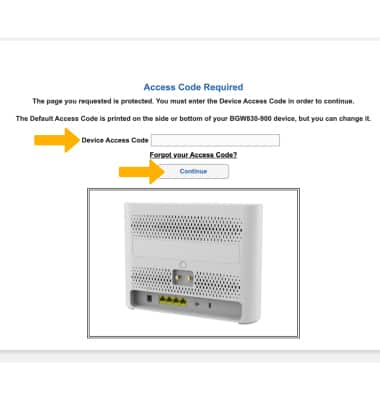
2. Follow the Camera’s Setup Instructions:
• Most cameras use a mobile app or web-based setup.
• During setup, select your Wi-Fi network and enter the password.
• The camera will connect to the device and join your network.
3. After following these steps your camera should be connected to your AT&T BGW830. Look for a blinking or solid light on the camera indicating it’s connected. The app will confirm a successful connection.
Connect a Camera via Ethernet
1.Plug the Ethernet cable from the camera into one of the LAN ports on your gateway.
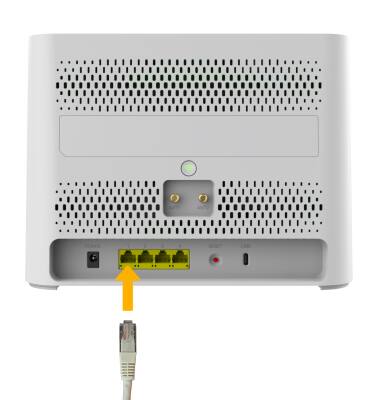
2.Turn on the camera (some get power via Ethernet if PoE is supported).
3.The camera will auto-join the network and can be configured via the camera’s app or web interface.
Complete Camera Configuration
• Use the camera’s app or web portal to finish setup, set up motion zones, alerts, and recording preferences.
• Assign a static IP address to the camera (optional but recommended for business use) using either the camera’s settings or your gateway’s admin page.
Access and Monitor Your Camera
• ON-SITE: Use the camera’s app, web interface, or connected computer.
• REMOTE ACCESS: Many cameras support cloud access, allowing you to view footage from anywhere via an app or web browser.
Note: If you need direct remote access (port forwarding), AT&T BGW830 may use CGNAT, which can limit direct inbound connections. Cloud-connected cameras bypass this issue.
Troubleshooting Tips
• WEAK WI-FI SIGNAL: Move the camera closer to the AT&T BGW830 or use a Wi-Fi extender.
• CAMERA NOT FOUND: Ensure both camera and phone/computer are on the same network during setup.
• BANDWIDTH: HD video cameras use significant bandwidth; limit the number of high-res streams if your internet plan is limited.