Configurar un cambio con Quick Start e eSIM
Configurar un cambio con Quick Start e eSIM
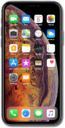
Coloca tu iPhone actual que te gustaría usar para configurar junto a tu nuevo iPhone.
Para usar la funcionalidad De inicio rápido de Apple, ambos dispositivos deben funcionar con iOS 11 o superior.
Desde tu iPhoneactual, toca Continue en la ventana emergente Set Up New iPhone .
Para el resto de la configuración de Quick Start, mantén tus iPhones cerca uno del otro.
Coloca el visor de tu iPhone actual sobre la imagen de tu nuevo iPhone para autenticar tu conexión.
Toca Set Up for Me en tu iPhone actual.
Si se configuró y habilitó un código personal en tu iPhoneactual, se te indicará que ingreses ese código personal en tu nuevo iPhone.
Confirma tu número de teléfono, luego toca Continue.
Ingresa un código postal aplicable, luego toca Continue.
Si tu iPhone fue comprado a Apple, solo tendrás la opción de ingresar tu código postal de facturación.
Tu plan móvil comenzará a activarse automáticamente. Cuando termines, toca Continue.
Toca Continue y sigue las instrucciones para configurar Face ID en tu nuevo iPhone, un sistema de autenticación importante que aumenta la seguridad de tu dispositivo. Una vez completado, podrás usar Face ID para desbloquear tu iPhone, confirmar compras e ingresar a sitios web (en Safari).
Toca Transfer from iPhone en tu nuevo iPhone para que la información de tu iPhone actual se transfiera a tu nuevo iPhone.
Toca Download from iCloud si la información que te gustaría transferir a tu nuevo iPhone ya se ha respaldado previamente en iCloud de tu cuenta de Apple, u oprime Other Options para obtener más opciones.
Luego, se te pedirá que aceptes los términos y condiciones de Apple para continuar con la configuración.
Ingresa la contraseña de tu ID de Apple.
Toca Customize para continuar.
Algunas aplicaciones pueden requerir tu ubicación precisa o aproximada para funcionar. Puedes activar y desactivar los servicios de ubicación dentro de la sección Privacidad de la aplicación Settings de tu iPhone o asignar permisos específicos para aplicaciones individuales.
Toca Continuar.
Toca Enable Location Services o Disable Location Services para continuar.
Si ya iniciaste sesión en un ID de Apple durante el proceso de configuración del iPhone, podrás tocar Continuar para configurar Apple Pay, que te permite vincular tus tarjetas de débito o crédito a tu iPhone. Luego puedes usar tu iPhone para pagar artículos digitales y físicos o transferir dinero a tus contactos.
Toca Continue para configurar Siri, el asistente digital integrado en iOS. Es posible que se te pida que digas algunas frases como parte del proceso de configuración.
Luego podrás iniciar Siri al decir"Hey, Siri!" o al mantener oprimido el botón de encendido de tu iPhone durante unos segundos.
Toca Continue para configurar Screen time.
Screen Time, que te ayuda a llevar un registro de tu uso iPhone, establecer límites de tiempo para las aplicaciones o limitar las aplicaciones y contactos con los que puedes interactuar entre horarios establecidos durante el día. Si usas las funcionalidades Family Sharing de iOS, también puedes establecer límites para los dispositivos de tus hijos.
Toca Continuar.
Toca Share with App Developers para permitir que Apple envíe informes anónimos sobre la actividad de tu aplicación y los problemas que tienes al desarrollador de una aplicación. De lo contrario, toca Don't Share.
Después de completar este paso, tu iPhone actual mostrará una pantalla Transfer Complete. Tu nuevo iPhone se reiniciará y luego se abrirá en la pantalla de inicio con toda la información de tu iPhoneactual cargada en ella.
¡Completaste los pasos!
