Configurar iPhone al transferir desde Android
Configurar iPhone al transferir desde Android
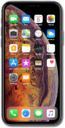
Mantén oprimido el botón lateral para encender tu iPhone y luego deslízate hacia arriba desde la parte inferior de la pantalla "Hello" para comenzar el proceso de configuración.
Si estás usando un dispositivo con un botón de inicio, oprime el botón Home en lugar de deslizarte hacia arriba desde la parte inferior de la pantalla.
Selecciona tu idioma y luego selecciona tu país o región.
Selecciona la apariencia de tu dispositivo y luego toca Continue.
Toca Set up without another device.
Selecciona tu red Wi-Fi.
Si se te solicita, ingresa la contraseña de la red y toca Join.
Toca Continuar.
Toca Set Up for Myself.
Toca Continue y sigue las instrucciones para configurar Face ID en tu iPhone, un sistema de autenticación importante que aumenta la seguridad de tu dispositivo. Una vez completado, podrás usar Face ID para desbloquear tu iPhone, confirmar compras e ingresar a sitios web (en Safari).
Si tu iPhone tiene un botón Home con un sensor de huellas digitales en lugar de una cámara TrueDepth, se te puede solicitar que configures Touch ID en su lugar.
Toca Don't Use Face ID with a Mask.
Según tu dispositivo, es posible que no veas esta opción.
Toca Continuar.
Crea un código personal.
Vuelve a ingresar tu código personal.
Toca From Android.
Toca Continuar.
Esto mostrará un código único que deberá ingresarse en tu dispositivo Android.
En tu dispositivo Android, abre la aplicación Move to iOS y sigue las instrucciones de configuración. Cuando se te indique, ingresa tu código único.
Este código será generado por tu nuevo dispositivo de iPhone. Si es necesario, es posible que debas generar un código nuevo.
Selecciona qué contenido te gustaría transferir.
Toca Continuar.
Tu dispositivo Android puede decir que la transferencia está completa antes de que termine el iPhone. Espera hasta que ambos dispositivos digan que la transferencia se completó antes de continuar.
¡Completaste los pasos!
