Setting up an eSIM using a QR Code or Activation Code
Galaxy Z Flip6
Setting up an eSIM using a QR Code or Activation Code
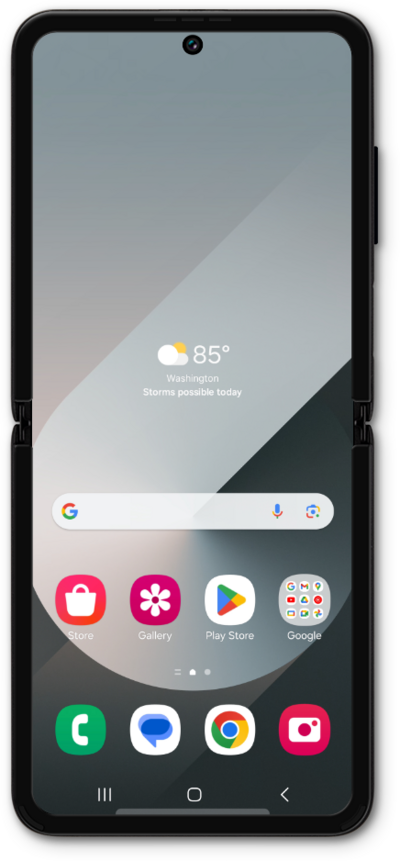
This tutorial guides you through the process of activating and setting up an eSIM on your smartphone using a QR code after the initial device setup has been completed. Whether you skipped eSIM activation during the initial setup or are switching carriers, this step-by-step guide will cover scanning your carrier-provided QR code and properly activating your eSIM.
1.
From the Settings app, tap Connections.
2.
Tap SIM manager.
3.
Tap Add eSIM.
4.
Tap Scan QR code.
5.
Scan the QR code with your device or tap Enter activation code to continue.
If you choose to enter your details manually, your activation code is typically included near your QR code.
6.
Toca Add.
7.
¡Completaste los pasos!
