Configurar una eSIM con un código QR o código de activación
iPhone 14 Pro Max
Configurar una eSIM con un código QR o código de activación
Este tutorial te guía en el proceso de activar y configurar una eSIM en tu smartphone con un código QR después de que se haya completado la configuración inicial del dispositivo. Ya sea que te hayas saltado la activación de la eSIM durante la configuración inicial o estés cambiando de proveedor, esta guía paso a paso abarcará el escaneo del código QR proporcionado por tu compañía telefónica y la activación adecuada de tu eSIM.
1.
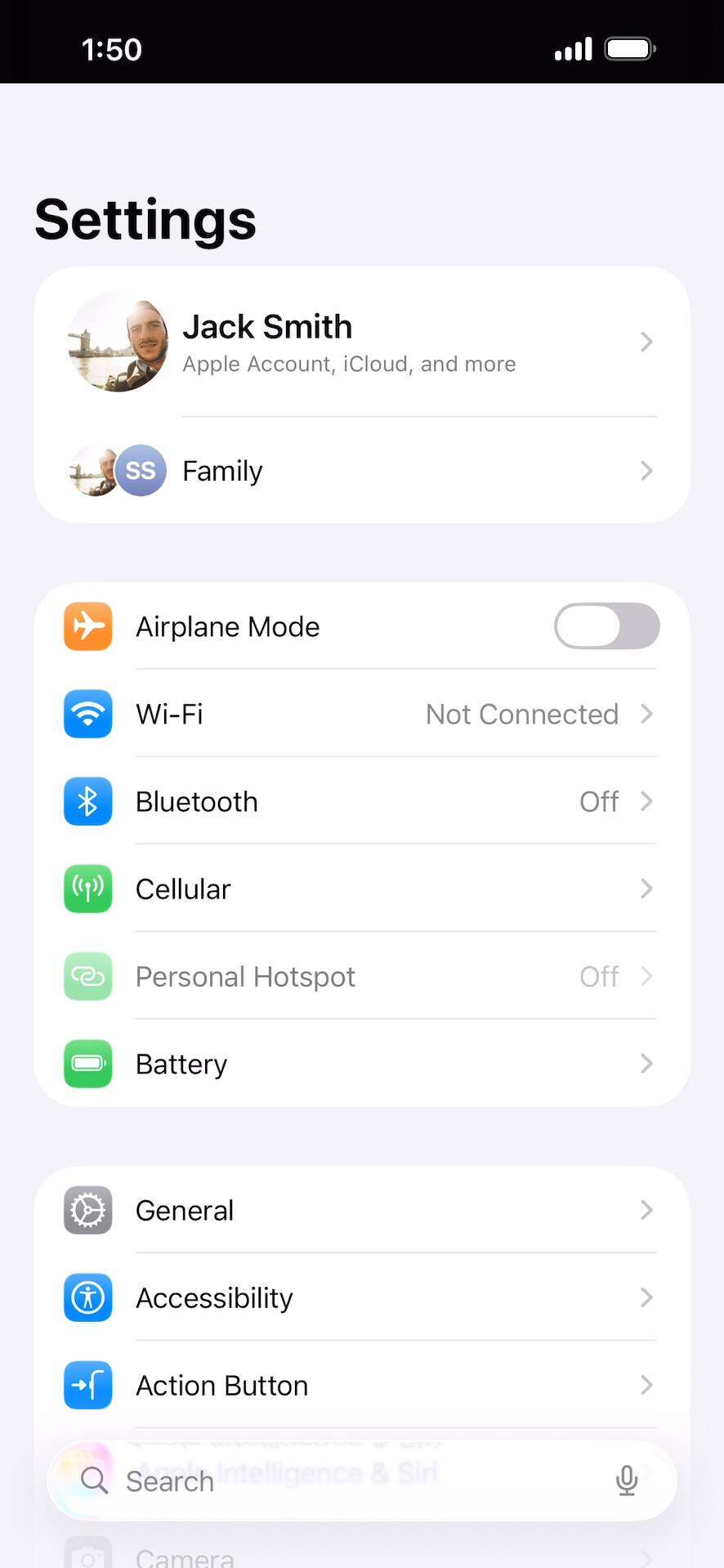
Desde la aplicación Settings, toca Cellular.
2.
Toca Set Up Cellular.
Si ya tienes una SIM o eSIM activa, esta pantalla puede variar. Busca el botón Añadir eSIM debajo de tu plan/planes actuales.
3.
Toca Scan QR Code.
4.
Toca Scan QR code otra vez.
5.
Escanea el código QR con tu dispositivo o toca Enter Details Manually para continuar.
Si eliges ingresar tus detalles manualmente, tu código de activación generalmente está incluido cerca de tu código QR.
6.
Toca Continuar.
7.
Toca Done.
8.
¡Completaste los pasos!