App Troubleshooting
App Troubleshooting

Use application manager to improve your app and device performance.
-
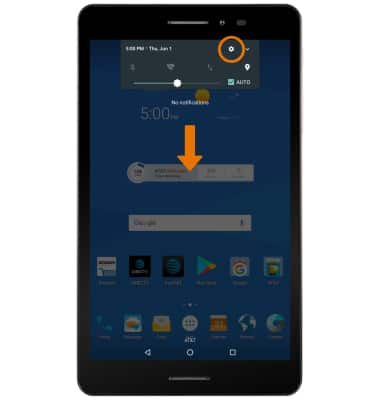
CLEAR APP CACHE: Swipe down from the Notification bar, then select the Settings icon.
-
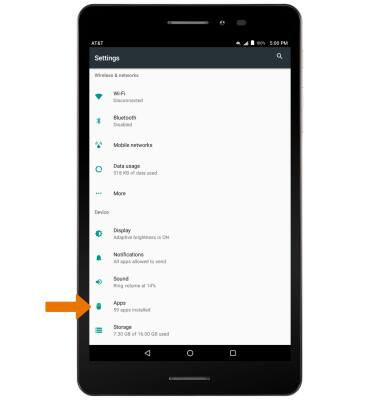
Select Apps.
-
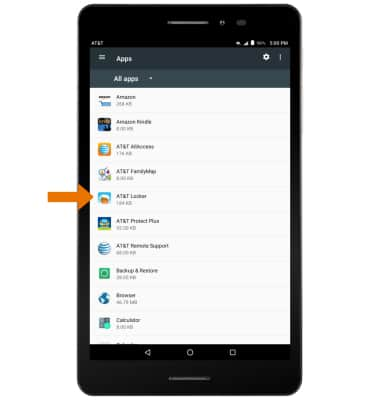
Select the desired app.
-
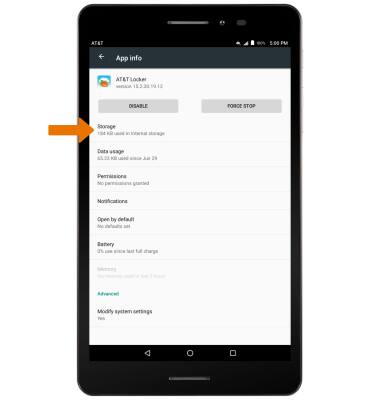
Select Storage.
-
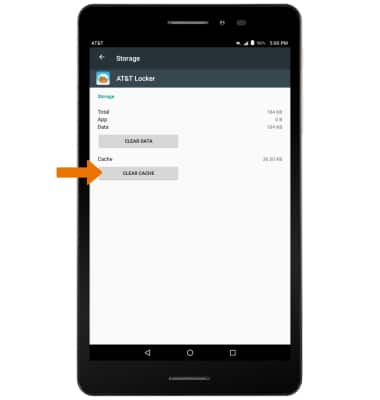
Select CLEAR CACHE.
-
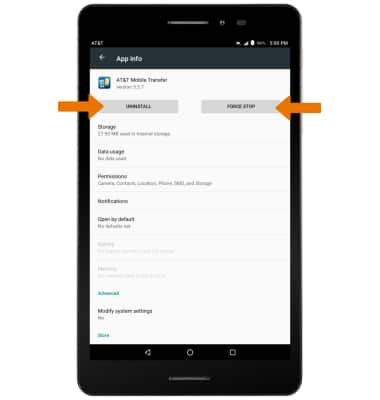
UNINSTALL/FORCE STOP AN APP: From the App info screen, select the desired option.
-
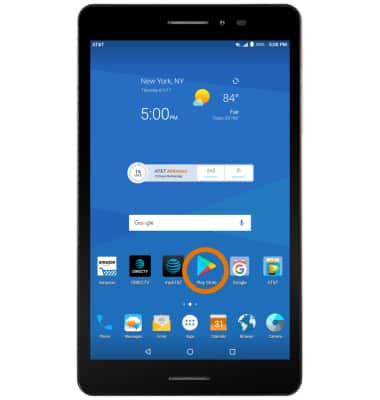
CHECK FOR APP UPDATE: To see if an app update is available, from the home screen select the Play Store app.
-
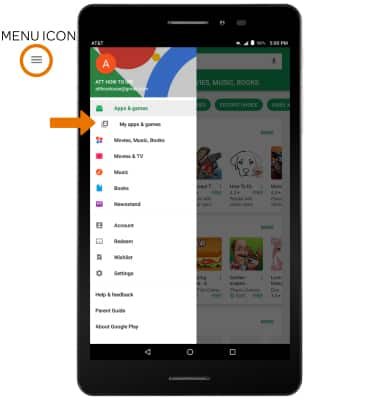
Select the Menu icon, then select My apps & games.
-
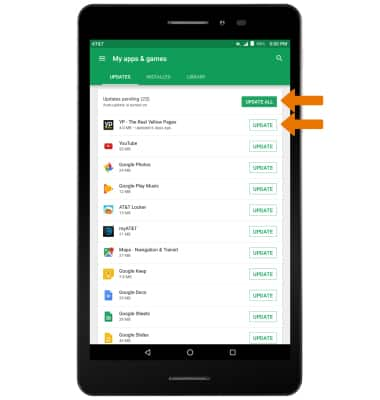
Select UPDATE on the desired app you would like to update. Select UPDATE ALL to update all apps with an available update.
-
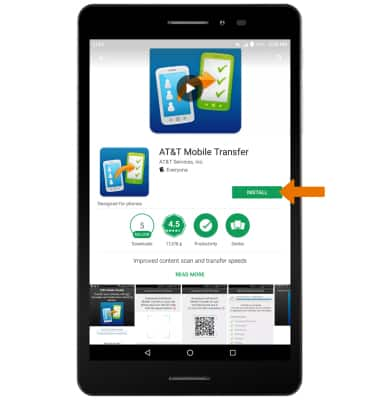
REMOVE AN APP: From the desired app in the Play Store, select UNINSTALL.
Note: You will be prompted to select OK to confirm.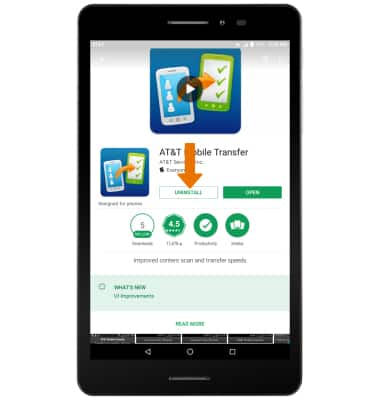
-
REINSTALL AN APP: From the desired app in the Play Store, select INSTALL.