Mobile Hotspot
Mobile Hotspot

Requires eligible data plan. For those using the AT&T amiGO™ Jr. Phone, the parent must first provide access to Settings.
In this tutorial, you will learn how to:
• Turn mobile hotspot on/off
• View mobile hotspot network name and connected devices
• Configure hotspot settings
When Mobile Hotspot is enabled, the

Mobile hotspot icon will be displayed in the Notification bar.
Turn mobile hotspot on/off
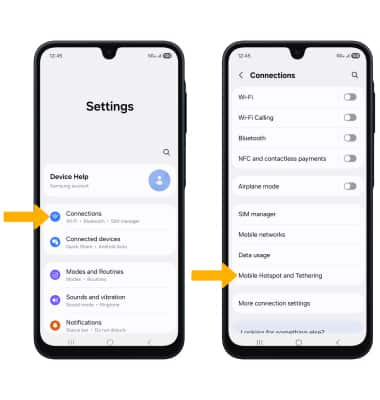
1. Swipe down from the upper right corner of the screen, then select the

Settings icon.
2. Select Connections, then select Mobile Hotspot and Tethering.
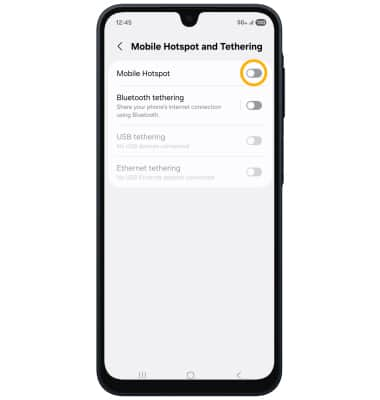
3. Select the Mobile Hotspot switch.
Note: If Wi-Fi is turned on, you will be prompted to select OK.
View mobile hotspot network name and connected devices
1. From the Mobile Hotspot and Tethering screen, select Mobile Hotspot.
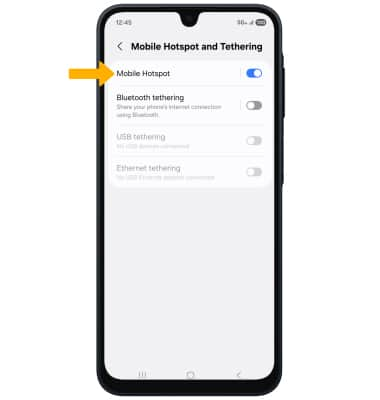
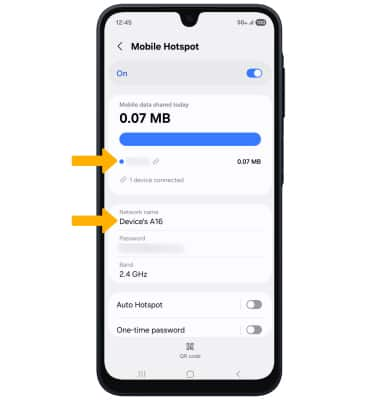
2. The Mobile Hotspot Network name and Connected devices will be displayed.
Configure hotspot settings
1. From the Mobile Hotspot screen, select the desired information to configure.
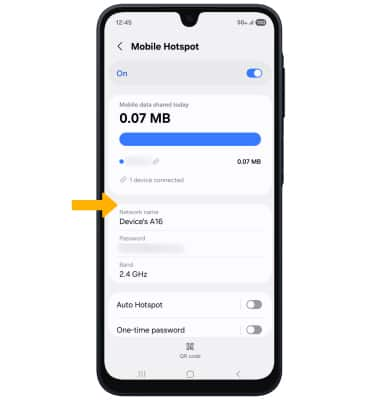
2. Edit the information as desired, then select Save when finished.
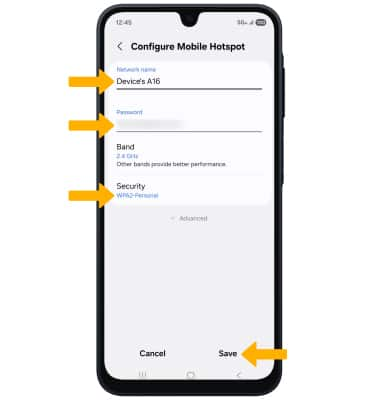
• NETWORK NAME: Change the name of the Mobile Hotspot network.
• SECURITY: Change the Security type of the Mobile Hotspot network.
• PASSWORD: Change the Password of the Mobile Hotspot network.