Configurar iPhone manualmente como dispositivo nuevo
Configurar iPhone manualmente como dispositivo nuevo
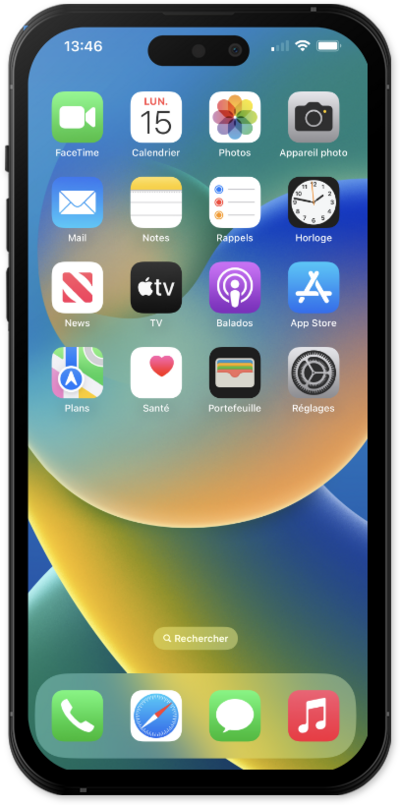
Hold the Side button to turn on your iPhone, and then swipe up from the bottom of the “Hello” screen to start the setup process.
Si estás usando un dispositivo con un botón de inicio, oprime el botón Home en lugar de deslizarte hacia arriba desde la parte inferior de la pantalla.
Selecciona tu idioma y luego selecciona tu país o región.
Selecciona la apariencia de tu dispositivo y luego toca Continue.
You can use another iOS device to automatically set up your new iPhone. Plug in both devices, place them next to each other, confirm your Apple ID on your new iPhone, and tap Continue. You’ll then use your new iPhone’s viewfinder to scan an image on your second iOS device, and you’ll need to enter your second iOS device’s passcode on your new device to start the data transfer. For more assistance, visit Setting up iPhone with Quick Start.
Otherwise, tap Set Up Without Another Device to continue the setup process.
Selecciona tu red Wi-Fi, ingresa su contraseña y toca Join.
Tap Learn More to view Apple’s data-collection and privacy policies, including information about how your information is shared and stored. De lo contrario, toca Continue para continuar.
Toca Adult.
For this step we are setting up this iPhone for an adult, but if you are setting up for a child family member select Child or Teen to use parental controls and safety features.
Toca Continue y sigue las instrucciones para configurar Face ID en tu iPhone, un sistema de autenticación importante que aumenta la seguridad de tu dispositivo. Una vez completado, podrás usar Face ID para desbloquear tu iPhone, confirmar compras e ingresar a sitios web (en Safari).
Si tu iPhone tiene un botón Home con un sensor de huellas digitales en lugar de una cámara TrueDepth, se te puede solicitar que configures Touch ID en su lugar.
Toca Don't Use Face ID with a Mask.
Según tu dispositivo, es posible que no veas esta opción.
Toca Continuar.
Incluso si has configurado Face ID o Touch ID, también tendrás que ingresar un código personal que usarás para desbloquear tu dispositivo cuando no esté disponible. Toca Passcode Options para cambiar entre una contraseña alfanumérica personalizada, un código personal de cuatro dígitos o un código personal de seis dígitos.
Tap Don't Transfer Anything.
Tap From Android if you would like to transfer your information from an Android phone. You must have the Move to iOS app installed on your Android phone to use this method.
Ingresa tu ID de Apple, toca Continue, ingresa tu contraseña y vuelve a tocar Continue . Es posible que se te solicite que ingreses un código de autenticación de dos factores para terminar de ingresar, que se enviará a uno de tus otros dispositivos Apple.
Luego, se te pedirá que aceptes los términos y condiciones de Apple para continuar con la configuración.
Tap Customize to proceed.
Some apps may require your precise or approximate location to function. You can turn location services on and off within the Privacy section of your iPhone’s Settings app, or assign specific permissions for individual apps.
Toca Continuar.
Tap either Turn On Location Services or Set Up Later to continue.
If you previously signed into an Apple ID during the iPhone setup process, you’ll be able to tap Continue to set up Apple Pay, which allows you to link your debit or credit cards to your iPhone. You can then use your iPhone to pay for digital and physical items or transfer money to your contacts.
Tap Continue to setup Screen time.
Screen Time, which helps you keep track of your iPhone use, set time limits for apps, or limit the apps and contacts you can interact with between set times during the day. If you're using iOS' Family Sharing features, you can also set limits for your kids' devices.
Toca Continuar.
Tap Share with App Developers to allow Apple to send anonymous reports about your app activity and issues you’re having to an app’s developer. Otherwise, tap Don’t Share.
Select whether you would like a Light or Dark look for your iPhone, and tap Continue. You can change this later in Settings under Display & Brightness, or even have your iPhone switch appearances automatically.
For this tutorial we are using Light mode. You can switch to Dark mode to have the system use a darker color palette for your device. Dark mode can help save battery as well.
Tap Set Up Later.
Toca Not Now.
Toca Continue.
Tap Continue to set up Siri, the digital assistant built into iOS. You may be asked to say a few phrases as part of the setup process.
You’ll then be able to launch Siri by saying, “Hey, Siri!” or by holding down your iPhone’s Power or Action button for a few seconds.
Toca Continuar.
Tap Get Started to finish the setup.
¡Completaste los pasos!
