Cambiar las configuraciones de llamadas y datos LTE o 5G
Cambiar las configuraciones de llamadas y datos LTE o 5G
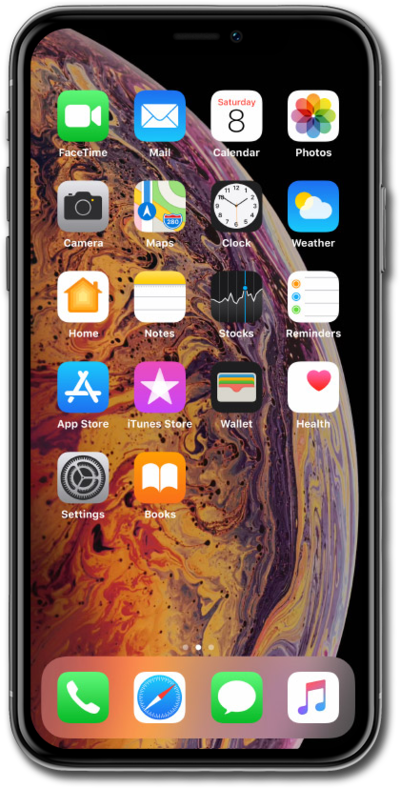
Desde la aplicación Settings, toca Cellular.
CELLULAR puede llamarse CELLULAR DATA o MOBILE DATA según tu dispositivo.
Toca Cellular Data Options.
Este tutorial comenzará con las configuraciones para dispositivos y redes 5G. Si tu pantalla se ve diferente, salta al paso 8 y continúa.
En Opciones de datos móviles, toca Voice & Data.
Select 5G On to prioritize 5G connections whenever they’re available; 5G Auto to prioritize LTE and save battery life if your 5G connection is weak; or LTE to disable 5G connectivity entirely.
Tap the Back icon to save your changes and return screens.
Within Cellular Data Options, tap Data Mode.
Puedes tocar una opción para fomentar más conectividad 5G o limitar las descargas automáticas y de fondo en conexiones móviles o Wi-Fi.
Para los siguientes pasos de este tutorial, usaremos un dispositivo sin funcionalidad 5G.
Within Cellular Data Options on a non-5G device or network, tap Voice & Data.
A non-5G device on a carrier that supports VoTLE (Voice over LTE) will see the following Cellular Data Options.
Your selection indicates the maximum connection type your device should use for data. If your options appear different, continue to the next step.
A non-5G device on a GSM carrier that does not support VoTLE (Voice over LTE) will see the following Cellular Data Options.
Depending on your carrier, you may also see "4G" in place of "LTE" on your device, or no options for 3G or 2G at all. Your selection indicates the maximum connection type your device should use for data.
Toca el ícono Back para guardar tus cambios.
¡Completaste los pasos!
