Configurar una SIM doble desde un código QR eSIM
Configurar una SIM doble desde un código QR eSIM
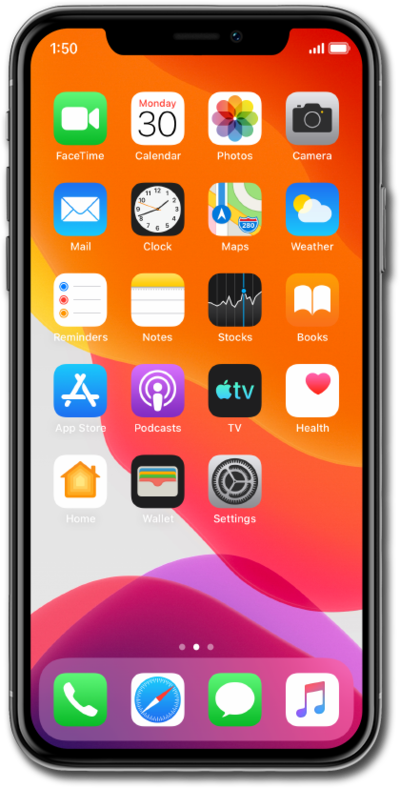
En la aplicación Settings, toca Cellular.
Suponiendo que tu compañía telefónica te haya dado un código QR para activar la eSIM para tu nuevo plan móvil, ten ese código listo para escanear. Cellular puede denominarse datos móviles o datos móviles en tu dispositivo.
Toca Add eSIM.
Tus opciones pueden diferir de lo que se muestra.
Toca Scan QR Code.
Toca Scan QR code otra vez.
Coloca el código QR proporcionado por tu compañía telefónica dentro del marco de la cámara.
Puedes tocar Enter Details Manually si tu compañía telefónica no proporcionó un código QR. El resto de este tutorial dará por hecho que escaneaste un código QR con tu dispositivo.
Toca Continuar.
Tu dispositivo comenzará a activar tu nueva eSIM. Este proceso puede demorar varios minutos.
Confirma tu plan de datos y toca Continue.
Asegúrate de seleccionar el plan correcto para el código QR que te proporcionó tu compañía telefónica.
Toca Continue de nuevo.
Toca Continue de nuevo.
Puedes darle una etiqueta a cada uno de tus planes móviles, como "personal" o "comercial". Esto hace que sea más fácil elegir el plan adecuado para llamadas y mensajes, o al seleccionar un plan y un número predeterminados para usar con contactos específicos.
Selecciona un plan predeterminado para llamadas y mensajes. Toca Continue para seleccionar uno para iMessage y FaceTime.
Las etiquetas coincidirán con lo que hayas establecido en el paso anterior.
Selecciona el plan y el número predeterminados para usar para los datos móviles. Toca Done para completar la configuración de la eSIM.
Cuando estás en una llamada en una línea, tu dispositivo puede usar tu otra línea para obtener datos si habilitas Allow Cellular Data Switching.
¡Completaste los pasos!
