Configurar tus niveles de volumen y tono de timbre
Configurar tus niveles de volumen y tono de timbre
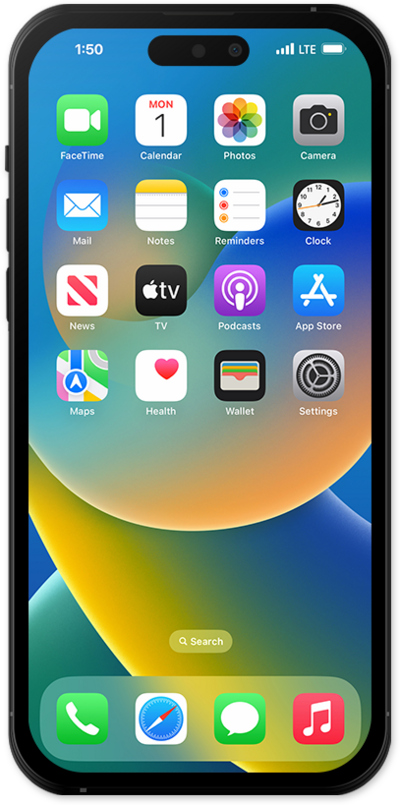
Oprime el botón Volume Up o Volume Down en el lateral de tu iPhone para ajustar el volumen.
Para tener acceso a controles de volumen adicionales, desde la aplicación Settings, toca Sounds & Haptics.
Arrastra la barra deslizadora Ringtone and Alerts para ajustar el volumen del tono de timbre y las alertas.
Toca o desliza el botón Change with Buttons para controlar si los botones de volumen también ajustan el tono de timbre y el volumen de alerta.
Para establecer niveles de volumen separados, toca o desliza el interruptor Match Ringtone Volume para desactivarlo, luego arrastra las barras deslizantes Alarms and Timers and Alerts and System Sounds a los niveles preferidos.
El volumen de alarmas y temporizadores no afecta la alarma de despertador u otras alarmas con su propio control de volumen.
Para limitar el volumen máximo del altavoz integrado de tu iPhone, toca Volume Limit.
Toca o desliza el botón Limit Maximum Volume para activarlo, luego arrastra la barra deslizadora hasta el volumen máximo que prefieras.
Para administrar el volumen de los audífonos, toca Back, luego desplázate y toca Headphone Safety.
Toca o desliza el botón Reduce Loud Audio para que se active, luego arrastra la barra deslizadora hasta el volumen máximo que prefieras.
¡Completaste los pasos!
