Conectar tu Apple Watch a tu iPhone y configurar NumberSync
Conectar tu Apple Watch a tu iPhone y configurar NumberSync
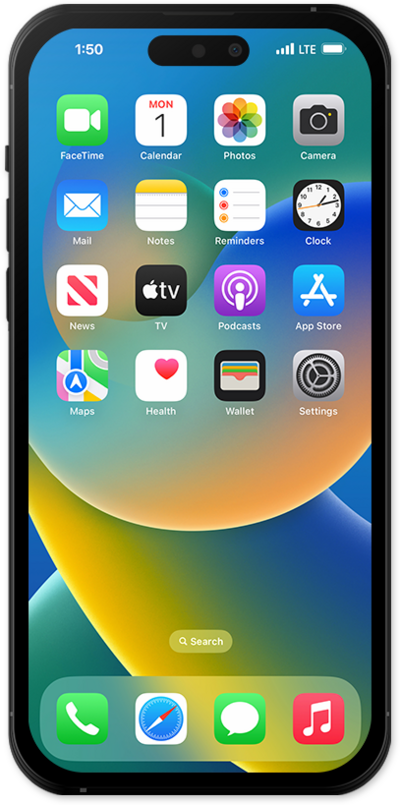
From the Watch app, tap Start Pairing.
Toca Set Up for Myself.
Scan your Apple Watch using your mobile device.
You may need to preform a software update your Apple Watch. You may choose to skip the software update, but this may exit the Apple Watch setup.
Tap Set Up Apple Watch.
Tap the "Left" or "Right" preference option.
Toca Continuar.
Tap the Top or Bottom preference option.
The orientation of the Digital Crown will depend on which wrist you wear the device on. You may also change its position by removing and replacing the wrist band on opposite sides of the device.
Toca Continuar.
Toca Agree.
After agreeing to your terms and conditions you may Create a Passcode, which you will preform between your iPhone and your Apple Watch. You can additionally choose to Add a Long Passcode or Don't Add Passcode and add one later.
Toca Continuar.
Toca Continue de nuevo.
Tap Use Siri.
Toca OK.
Toca Continuar.
Tap Enable Route Tracking.
Toca Continuar.
Toca Continue de nuevo.
Toca Set Up Cellular.
Tap Add device.
Tap the User ID field and enter your information.
Tap the Password field and enter your information.
Toca Sign in.
Toca Continuar.
¡Completaste los pasos!
