En este tutorial, aprenderás a hacer lo siguiente:
• Download an app
• Actualizar una aplicación
• Desinstalar una aplicación
• Re-install an app
Download an app
1. En la pantalla principal, selecciona la  Aplicación Play Store.
Note: The Google Play Store provides access to the latest music, apps, games, videos, and more. Para acceder se requiere una cuenta de Google. Para obtener más información o ayuda, consulta el sitio de ayuda de Google Play.
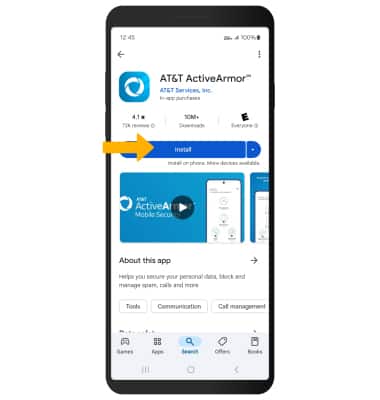
2. Selecciona la  pestaña Search, luego selecciona el campo Search. Enter the desired app name, then select a suggestion or the Search key. Select Install.
Note: If prompted, review permissions and if you agree select Accept. Aplicaciones creadas para Android 6.0 o posterior pedirán permiso una vez que empieces a utilizarlas. Si es necesario, revisa los permisos y, si aceptas, selecciona CONTINUE. Devices with Android 8.0 will also have a "TRY NOW" option, which lets users access an app feature without downloading the full app.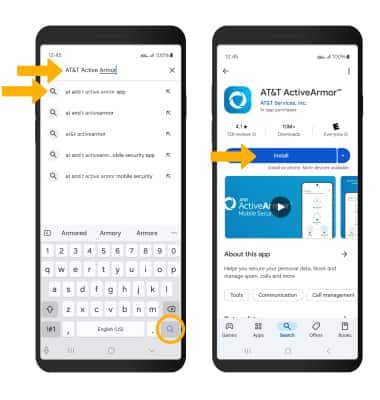
3. The  Downloading icon will appear in the Notification bar while the content is downloading.
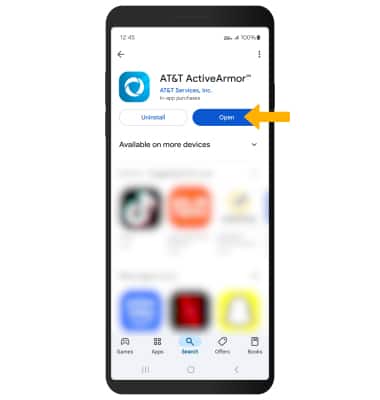
4. To access the app after it has downloaded and installed, select Open.
Note: Apps can be returned within 15 minutes of purchase. To return an app, from the Play Store, select the  Menu icon > My apps & games >
the desired app > REFUND > YES.
Actualizar una aplicación
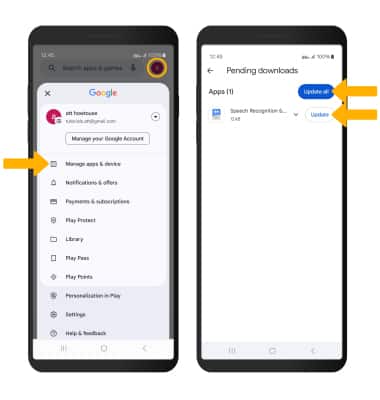
From the Play Store, select the Account icon, then select My apps & games > Updates available. Select Update on the desired app to update. Select Update all to update all apps.
Desinstalar una aplicación
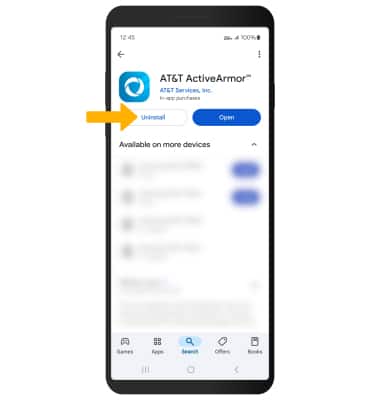
From the desired app in the Play Store, select Uninstall.
Note: Select Uninstall again to confirm. To remove an app from the home screen, select and hold the desired app, then select Info icon > Uninstall > OK.
Re-install an app
From the desired app in the Play Store, select Install then follow the on-screen prompts.