En este tutorial, aprenderás a hacer lo siguiente:
• Bloquear/desbloquear un dispositivo en el sitio web de administración
• Bloquear/desbloquear un dispositivo en el dispositivo
Bloquear/desbloquear un dispositivo en el sitio web de administración
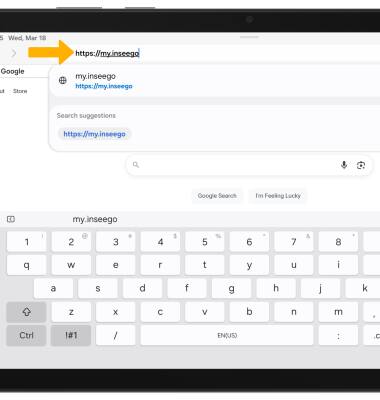
1. Desde el navegador de su dispositivo, vaya a http://my.inseego.
Importante: Asegúrate de que tu dispositivo esté conectado al Inseego MiFi PRO M4Es la red de Wi-Fi. Para obtener más información, visita los tutoriales Connect Devices to Wi-Fi o Connect PC o Mac to Wi-Fi. Si esta es la primera vez que ingresas a la página de administrador web, la contraseña predeterminada aparecerá en la parte inferior de tu dispositivo. Se te indicará que cambies la contraseña de administrador.
Importante: Asegúrate de que tu dispositivo esté conectado al Inseego MiFi PRO M4Es la red de Wi-Fi. Para obtener más información, visita los tutoriales Connect Devices to Wi-Fi o Connect PC o Mac to Wi-Fi. Si esta es la primera vez que ingresas a la página de administrador web, la contraseña predeterminada aparecerá en la parte inferior de tu dispositivo. Se te indicará que cambies la contraseña de administrador.
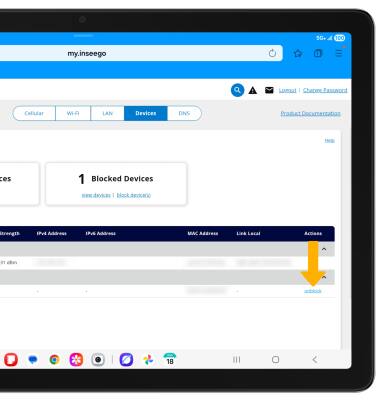
2. Seleccione el menú Network, luego seleccione la pestaña Devices. Desplázate y selecciona block junto al dispositivo deseado.
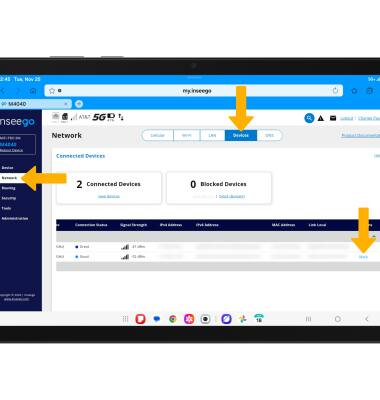
3. Para desbloquear un dispositivo, desde la pestaña Devices, desplázate y selecciona unblock junto al dispositivo deseado.
Bloquear/desbloquear un dispositivo en el dispositivo
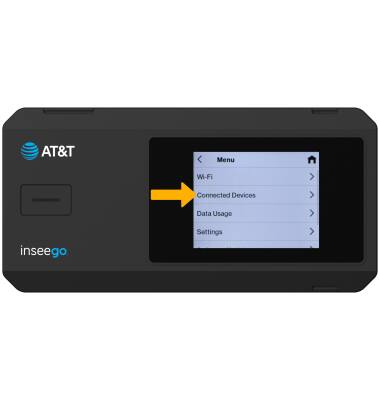
1. En la pantalla principal del dispositivo, seleccione Menú y luego seleccione Dispositivos conectados.
2. Selecciona el dispositivo deseado.
2. Selecciona el dispositivo deseado.
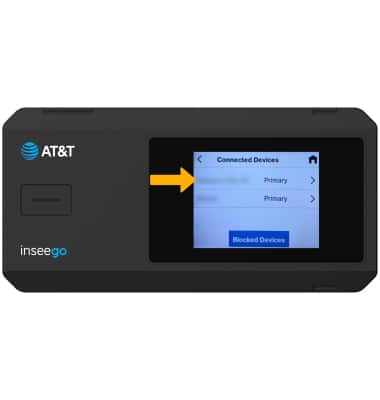
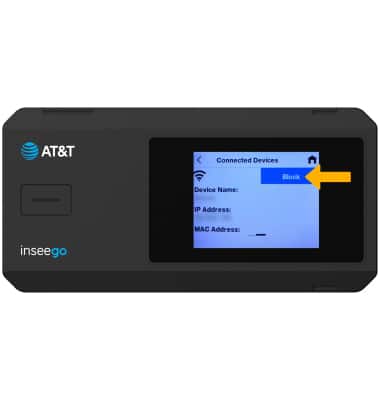
3. Para bloquear el dispositivo, seleccione Bloquear.
Importante: Para desbloquear un dispositivo, desde la pantalla Connected Devices, selecciona Blocked Devices > el dispositivo deseado > Unblock.