Block or Unblock Calls
Block or Unblock Calls

When a call is blocked, it is routed directly to voicemail. The call blocking feature may not affect phone calls made or received via third-party apps installed on your device. Contact third-party app developers for assistance with such applications.
In this tutorial, you will learn how to:
• Access blocked numbers
• Block and unblock numbers
• Block a phone number from the call log
• Use Call Protect
Access blocked numbers
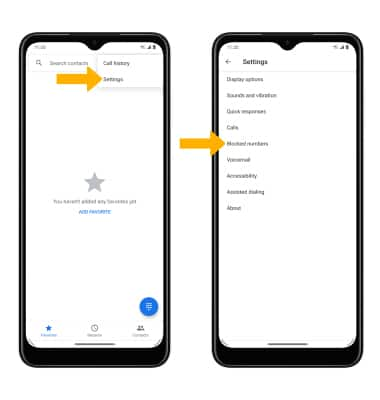
From the  Phone app, select the
 Menu icon > Settings > Blocked numbers.
Block and unblock numbers
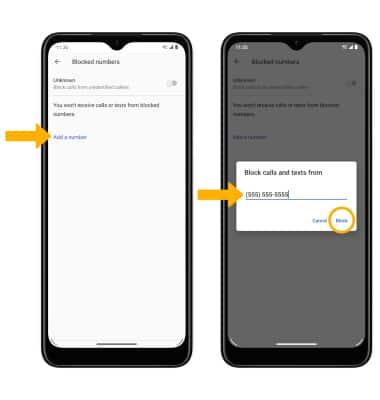
BLOCK NUMBERS: From the Blocked numbers screen, select Add a number. Enter the desired number, then select Block.
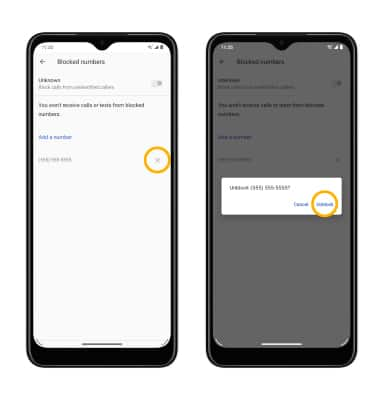
UNBLOCK PHONE NUMBER: Select theX icon next to the desired number. Select Unblock to confirm.
Block a phone number from the call log
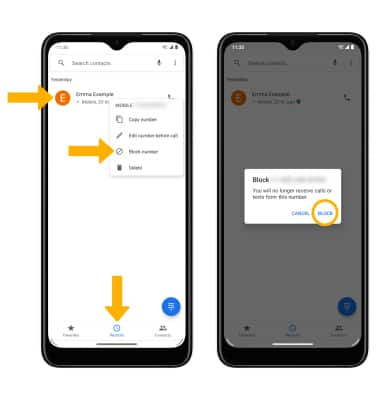
From the Phone app, select the Recents tab then select and hold the desired phone number. Select Block number, then select BLOCK to confirm.
Use Call Protect
To automatically block calls from likely fraudsters, get alerts on suspected spam, and manually block calls learn more about AT&T Call Protect. Free for eligible users.