Match video input and source
Learn how to connect separate video inputs to incoming video sources, such as a receiver, DVD player, or other device connected to the TV.
Learn how devices are connected to your TV
Understanding how devices connect to your TV
Note: This solution requires that your AT&T U-verse or DIRECTV remote control is programmed to your television. Assistance with your U-verse remote control, including programming, can be found online. If your U-verse or DIRECTV remote is not working correctly, use the TV/VIDEO or Source button on your television manufacturer's remote control to change video sources.
If you're unable to see TV programs on your screen, first try pressing the TV/VIDEO button on your remote control to change the input from Video 1 to Video 2 to Video 3, and so on. The video input selected on the TV must match the input used by the incoming video source, such as the receiver, DVD player, or other device connected to the TV.
Cable options for connecting your devices to your TV
Every TV is different in the way the ports are configured on the back of the TV and in the way the menus are presented on the TV screen. Most devices have ports that require one or more of these cables:
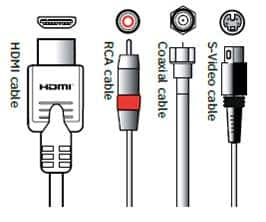
Check your device manuals for information about which cables to use.
To connect your AT&T U-verse or DIRECTV HD-ready receiver to your HDTV set, use HDMI cables (HDMI to HDMI is the highest quality connection for video and audio). If your HDTV set doesn’t have an HDMI port, you can use color-coded (red, green, and blue) component RCA cables. RCA cables output audio and video signals from the receiver and plug into matching audio and video RCA inputs on the back of your HDTV set.
If you've connected your device to your TV using composite (yellow connector), S-Video, or coaxial cables, you won't get an HD picture. HD is supported only through HDMI or component RCA cables. The same holds true for Dolby Digital 5.1 surround sound, which is available only through HDMI or TOS Link (optical). The Baseband cable (red and white connectors) delivers sound only in stereo.
Check your TV inputs
Many newer TVs have a feature that automatically detects everything that's connected to the TV. Other TVs, however, have to be checked and configured manually. To check the video input selection manually, press the TV/VIDEO or Source button on your TV manufacturer's remote control to locate the video input menu for your TV; then click through to see what’s connected to each input.
Note: Refer to your TV manufacturer's instruction manual to resolve issues specifically related to your TV.
If you're unable to see TV programs on your screen, first try pressing the TV/VIDEO button on your remote control to change the input from Video 1 to Video 2 to Video 3, and so on. The video input selected on the TV must match the input used by the incoming video source, such as the receiver, DVD player, or other device connected to the TV.
Cable options for connecting your devices to your TV
Every TV is different in the way the ports are configured on the back of the TV and in the way the menus are presented on the TV screen. Most devices have ports that require one or more of these cables:
Check your device manuals for information about which cables to use.
To connect your AT&T U-verse or DIRECTV HD-ready receiver to your HDTV set, use HDMI cables (HDMI to HDMI is the highest quality connection for video and audio). If your HDTV set doesn’t have an HDMI port, you can use color-coded (red, green, and blue) component RCA cables. RCA cables output audio and video signals from the receiver and plug into matching audio and video RCA inputs on the back of your HDTV set.
If you've connected your device to your TV using composite (yellow connector), S-Video, or coaxial cables, you won't get an HD picture. HD is supported only through HDMI or component RCA cables. The same holds true for Dolby Digital 5.1 surround sound, which is available only through HDMI or TOS Link (optical). The Baseband cable (red and white connectors) delivers sound only in stereo.
Check your TV inputs
Many newer TVs have a feature that automatically detects everything that's connected to the TV. Other TVs, however, have to be checked and configured manually. To check the video input selection manually, press the TV/VIDEO or Source button on your TV manufacturer's remote control to locate the video input menu for your TV; then click through to see what’s connected to each input.
Note: Refer to your TV manufacturer's instruction manual to resolve issues specifically related to your TV.
Last updated: December 7, 2022