How do I set up a Native PPPoE?
Learn how to set up a Native PPPoE.
You’re viewing instructions for
Operating System
Macintosh OS X (all)
KM1195403-slctrgrp_macosxall
Set up a Native PPPoE for Mac
Mac OS X has a built in PPPoE client to give the ability to connect to DSL internet connections without added software. To connect to the Internet using PPPoE, do the following:
If the connection is successful, the following screen will appear.
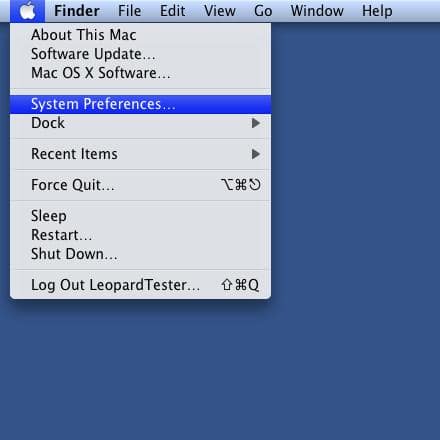
- Click on the Apple menu.
- Click System Preferences.
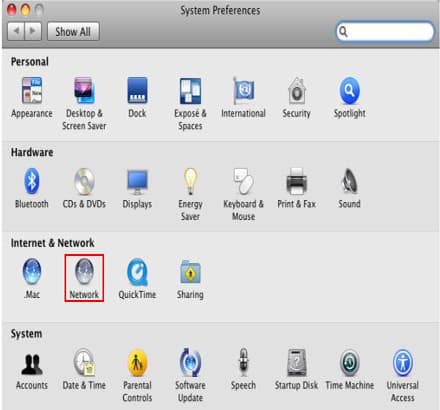
- Click Network.
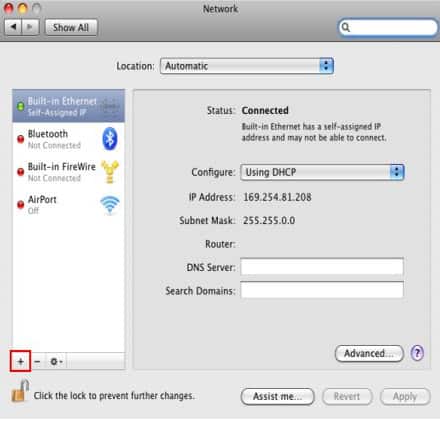
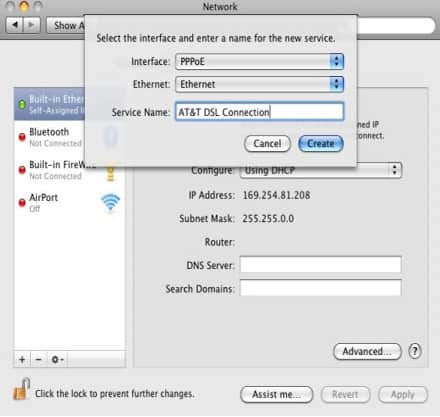
- Click the plus sign (+) in the lower left-hand corner of the Network window.
- Choose PPPoE from the Interface pop-up menu.
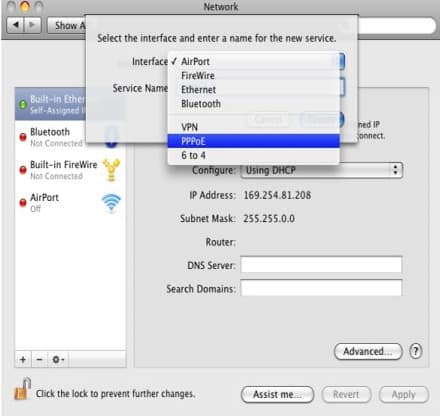
- Type AT&T DSL Connection in the Service Name field.
- Click the Create button.
- Type youe PPP username in the Account Name field (for example: [email protected], etc.)
- Type your account password in the Password field.
- Put a check in the box next to Remember this password.
- Put a check in the box next to Show PPPoE status in menu bar.
- Click the Connect button.
If the connection is successful, the following screen will appear.
Last updated: December 7, 2022
Browse topics
Dedicated Internet & Data Transport
Installation & setup
Order status
Plans & features
Speed, Wi-Fi & troubleshooting
Explore AT&T Dedicated Internet and AT&T Data Transport services.