How do I set up a PPPoE or Enternet 300 Connection for Windows and Mac?
Learn how to set up a PPPoE or Enternet 300 Connection for Windows and Mac.
You’re viewing instructions for
Operating System
Macintosh OS X (all)
KM1195454-slctrgrp_macosxall
Set up a PPPoE or Enternet 300 Connection
The Mac OS X operating system includes its own PPPoE software. You should use it instead of Enternet 300.
- In the Apple Menu, select System Preferences.
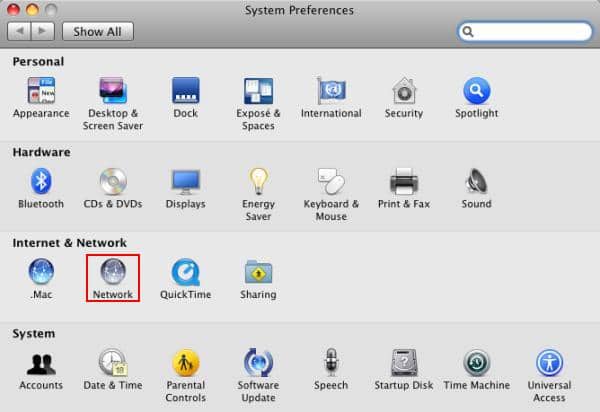
- Click the Network icon.
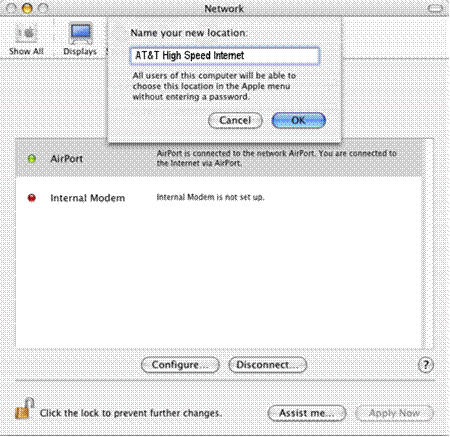
- Choose New Location ... from the Location pop-up menu.
- Type AT&T High Speed Internet in the Name your new location field.
- Click the OK button.
- Click on the PPPoE tab and heck the box next to Connect using PPPoE.
- Enter the following information:
- In the Account Name field, enter your AT&T Member ID.
You must enter your full email address (e.g., [email protected].) - In the Password field, enter your AT&T password.
- Check the box next to Show PPPoE status in the menu bar.
- Click the Apply Now button.
- In the Account Name field, enter your AT&T Member ID.
- Close the System Preferences window.
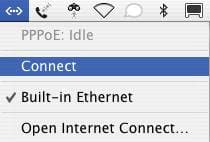
- Click the Ethernet icon in the top right of the Menu Bar.
- Choose Connect.
Last updated: December 7, 2022
Browse topics
Dedicated Internet & Data Transport
Installation & setup
Order status
Plans & features
Speed, Wi-Fi & troubleshooting
Explore AT&T Dedicated Internet and AT&T Data Transport services.