What to do if you don't have an Internet connection
Visit the AT&T eRepair website to check for maintenance in your area.
Troubleshoot
There are several reasons you may have problems connecting to the Internet. These basic troubleshooting steps will fix most connection issues.
Basic troubleshooting
If you could not restore your connection, contact us, or try our Advanced Troubleshooting steps.
Basic troubleshooting
- Check your cables. Note: If your AT&T provided modem is connected to a third party router (Linksys, DLink, etc), you should remove that equipment before continuing. For help setting up a home network using thrid party equipment, please contact the equipment manufacturer.
Verify that all physical connections to your DSL modem and computer are in place (e.g., phone line, power cords, ethernet cables) and that the power is turned ON. The DSL modem should not be plugged into a surge protector.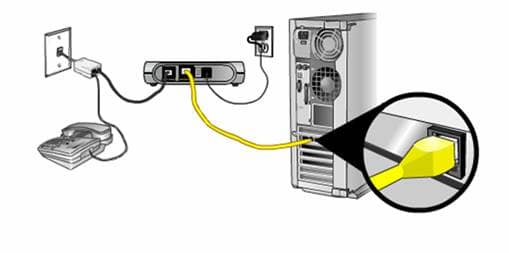
- Make sure DSL filters are installed on all phone jacks that have telephone devices connected (e.g., phones, fax machines, answering machines). Make sure the phone line connected to your DSL modem is plugged directly into the phone jack or into the ADSL HPN side of a DSL filter.
- Turn your DSL modem and computer off (reboot) and wait for at least 2 minutes. While the modem is off, remove the phone line from the modem and plug it back in. Turn the modem and computer back on. Once the computer and modem is on, wait several minutes and check to see if you have restored connection. Note: Connectivity will be lost while performing this step. Please bookmark or print this page for future reference.
- If you are using wireless Web, make sure your wireless connection is set up correctly.
If you could not restore your connection, contact us, or try our Advanced Troubleshooting steps.
Last updated: December 7, 2022
Browse topics
Dedicated Internet & Data Transport
Installation & setup
Order status
Plans & features
Speed, Wi-Fi & troubleshooting
Explore AT&T Dedicated Internet and AT&T Data Transport services.