Changing account settings
iPhone 17 Pro
Changing account settings
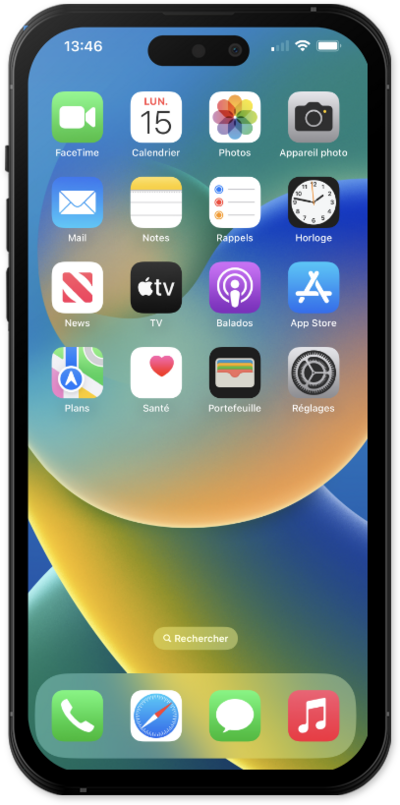
When you set up an email account on your device, it may also sync your contacts or your calendar to your device. You can change those settings to only sync the data from the account that you want on the device.
1.
From within the Settings app, scroll to and tap Apps.
2.
Scroll to and tap Mail.
3.
Tap Mail Accounts.
4.
Select an account.
5.
From this screen, you can perform a variety of actions to manage your account:
- Sync options - Switch the toggles next to Mail, Contacts, Calendars, and/or Notes to ON to sync their respective saved data to/from this account.
- Account Settings - Manage account information, server settings, and more.
- Delete Account - Removes the account from the device. Data that has already been synced may remain.
6.
You've completed the steps!
