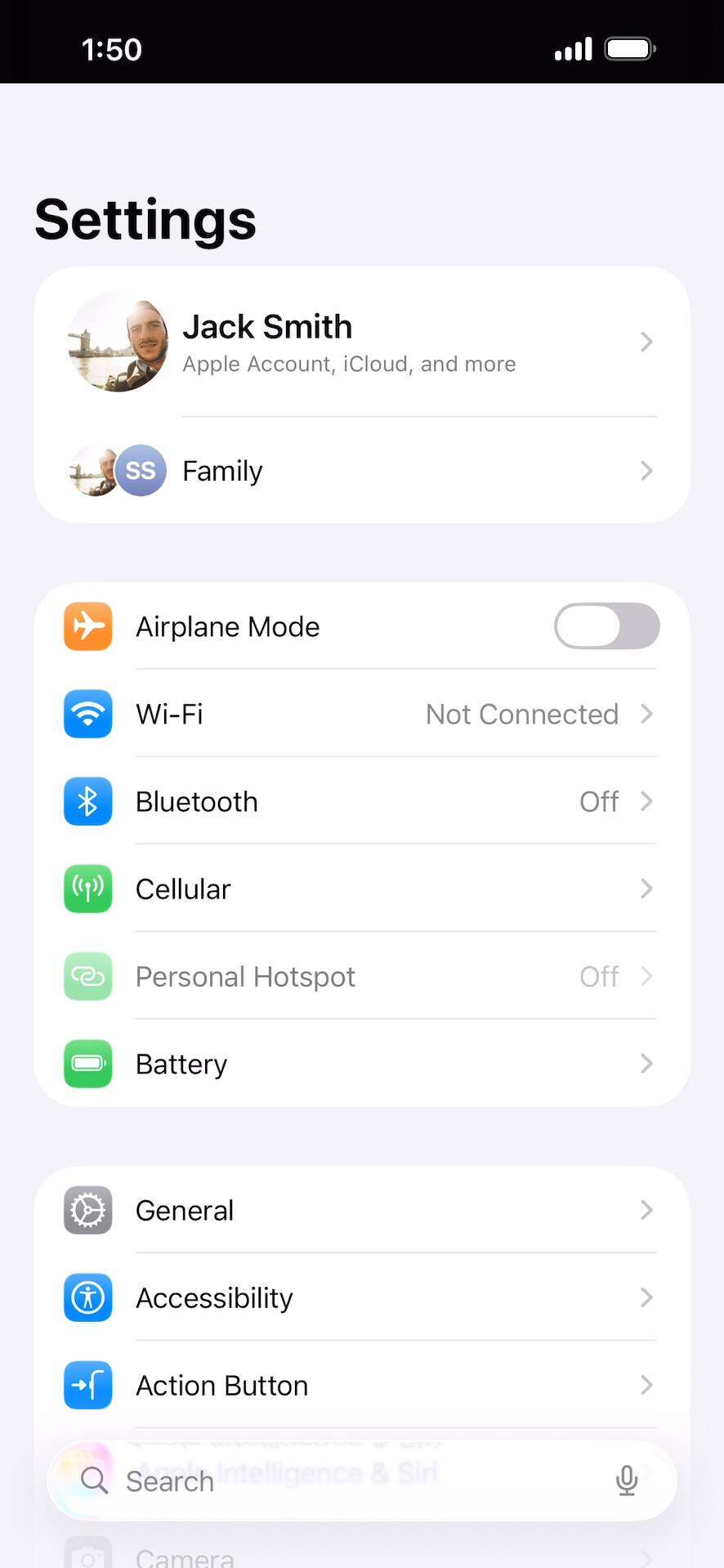
Setting touch accessibility settings
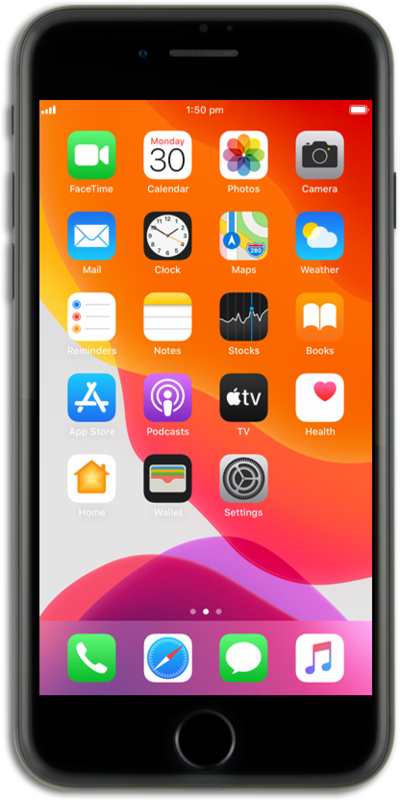
iPhone SE (2nd generation)
Setting touch accessibility settings
AssistiveTouch allows you to replicate gestures (including multi-finger gestures) and physical buttons using a small, on-screen button instead.
1.
From within the Settings app, tap Accessibility.
2.
Scroll to and tap Touch.
3.
From this screen, you can set up and manage several touch assistance features:
- AssistiveTouch - Set up custom actions to control your iPhone with simplified actions and a quick-access menu, or adaptive accessories.
- Haptic Touch - Control the time it takes to press and hold for contextual actions and previews.
- Back Tap - Enable double- or triple-tapping the back of the device shell to open apps or perform various other actions.
4.
You've completed the steps!