Setting up Screen Time as a parent
Setting up Screen Time as a parent
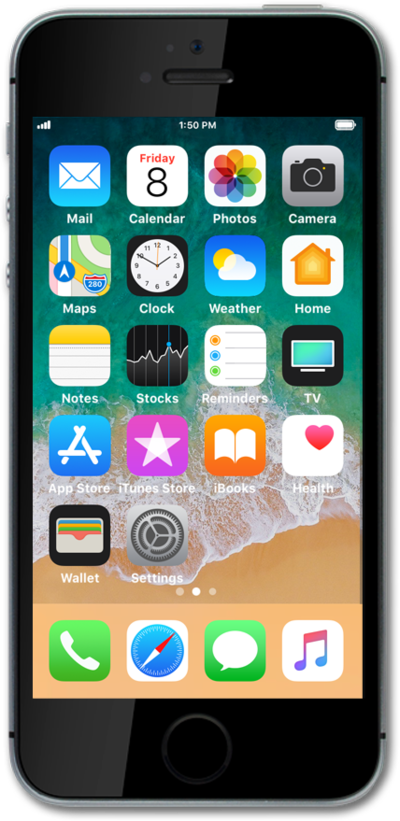
From the Home screen, tap Settings.
Tap Screen Time.
Scroll to the family member you'd like to set up Screen Time for.
Select the family member you'd like to set up Screen Time for.
Tap Turn On Screen Time.
With Screen Time, you can limit when you can access certain apps on your iOS devices. During this time, only apps you select and phone calls will be available. These settings will apply to all your devices sharing the same Apple ID.
Tap Continue.
Tap Start.
Scroll to the time wheel.
Select your preferred start time.
Tap End.
Select your preferred end time.
Tap Set Downtime.
Select an app category.
You can select multiple app categories or tap Show All Categories.
Scroll to Time Amount.
Tap Set.
Scroll to the time wheel.
Select a time duration.
Tap Set App Limit.
Tap Continue.
With Screen Time, you can set restrictions for content, changes to account settings, and more. These settings will apply to all your devices sharing the same Apple ID.
Enter a passcode.
To access these features, you'll need to set up a Screen Time passcode. This is different than your Lock screen passcode.
Confirm your passcode.
From this next screen, you'll be able to set up customized downtime, app limits, and content restrictions for an individual account on your Family Sharing plan.
You've completed the steps!
