
In this tutorial, you will learn how to:
• Connect devices to Wi-Fi
• Activate Screen Sharing
• Turn off Screen Sharing
Connect devices to Wi-Fi
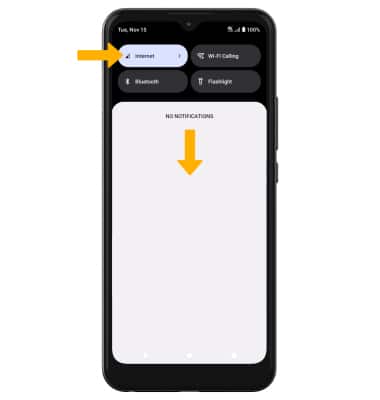
1. Swipe down from the Notification bar, then select and hold Internet.
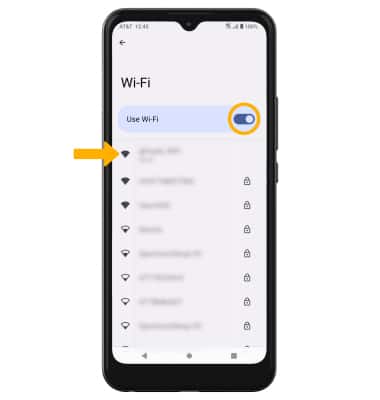
2. Select the Use Wi-Fi switch to turn Wi-Fi on, then select the desired Wi-Fi network.
Note: If necessary, enter the Password then select CONNECT. If you need further assistance connecting to Wi-Fi, visit the Wi-Fi tutorial.
Activate Screen Sharing
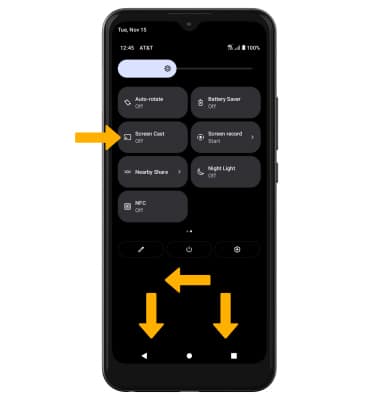
1. Swipe down from the Notification bar with two fingers, then swipe left to and select Screen Cast.
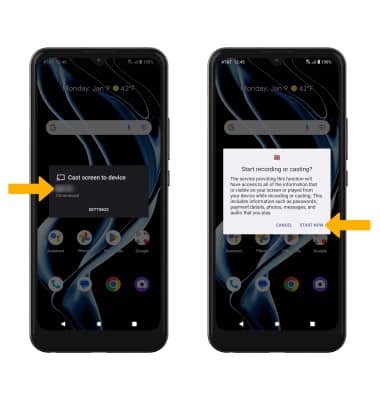
2. Select the desired device, then select START NOW.
Note: You can also turn Screen Sharing on or off through Expanded Quick Settings. Swipe down from the notification bar with two fingers then swipe left. Select the  Screen Cast icon to quickly turn screen sharing on or off.
5. When Casting your screen, the Cast icon will be displayed in the Notification bar.
Turn off Screen Sharing
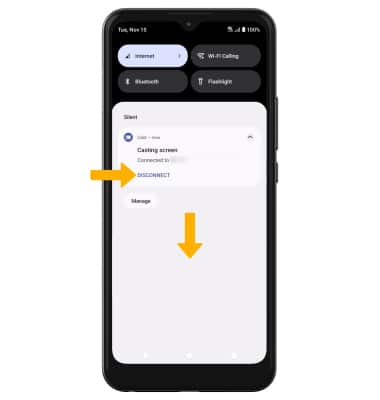
From the Home screen, swipe down from the Notification bar, then select DISCONNECT under the Cast notification.