In this tutorial, you will learn how to:
• Take a screenshot
• Delete a screenshot
• Share a screenshot
Take a screenshot
Press and hold down the Power/End Call button. Press the navigation keys to highlight Screenshot, then press the Select button to select.
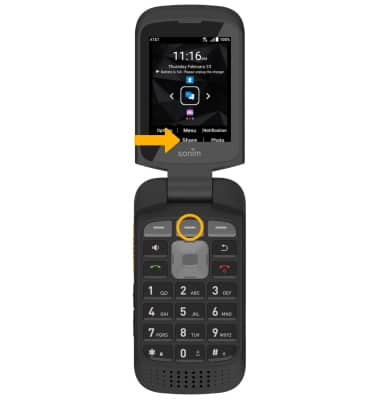
Note: To access screenshots, from the home screen, press the Center Dynamic ket to access the Menu. Press the navigation keys and the Select button to select Applications > Gallery app.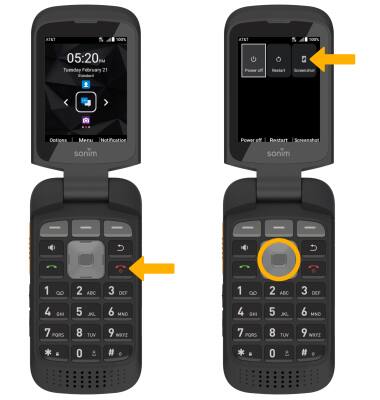
Delete a screenshot
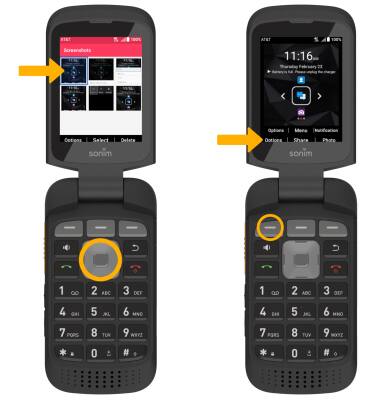
1. From the Gallery app, press the navigation keys to highlight the desired screenshot, then press the Left Dynamic key to select Options.
2. Ensure that Delete is highlighted, then press the Select button to select. Press the Center Dynamic key to select Delete to confirm.
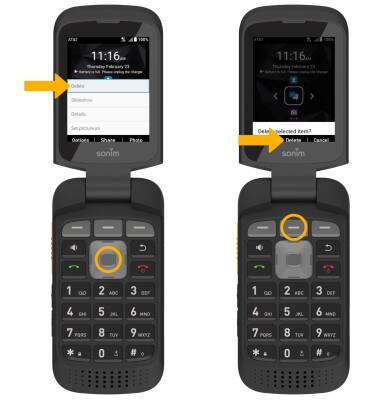
2. Ensure that Delete is highlighted, then press the Select button to select. Press the Center Dynamic key to select Delete to confirm.
Share a screenshot
When viewing the desired screenshot, press the Center Dynamic key to select Share and follow the prompts to share the screenshot.