
 Camera app.
In this tutorial, you will learn how to:
• Access camera modes
• Customize photo and video settings
• Turn shutter sound on/off
• Crop a photo
• Access filters
• Use Magic eraser
• Use Photo Unblur
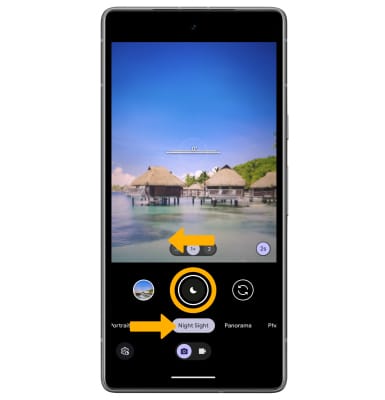
• Use Night Sight
Access camera modes
From the Camera app, swipe left or right to access modes such as Long Exposure, Portrait, Night Sight, Panorama, and Photo Sphere.
Note: Night Sight allows you to take pictures in the dark. Motion allows you to capture moving subjects with creative blur. Portrait captures a picture with a sharp subject against a blurred background. Panorama allows you to create wider photos by stitching together multiple photos. Photo Sphere allows you to create a 360º photo by stitching together multiple photos. Lens searches what you see and provides relevant online information.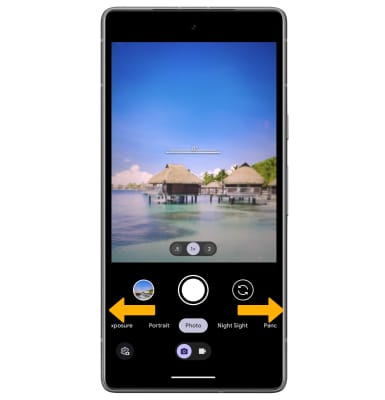
Customize photo and video settings
From the Camera app, swipe up or select the Settings icon to access settings. Select More settings to access more settings.
Note: Settings vary depending on the camera mode.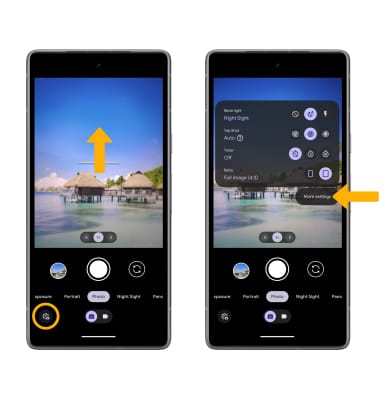
Turn shutter sound on/off
From the Camera settings screen, select the Camera sounds switch.
Crop a photo
1. From the Camera app, select the Gallery icon. Swipe to the desired photo, then select the Edit icon.
Note: Alternately, from the home screen, select the  Photos app then navigate to and select the desired photo.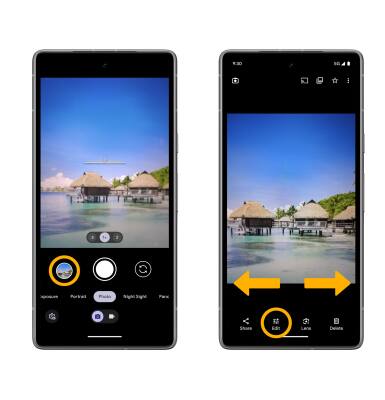
2. Select Crop. Select and drag the crop corners to crop as desired, then select Save copy.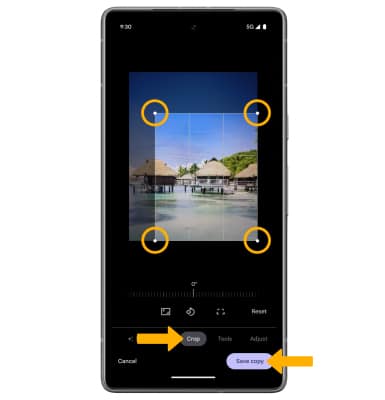
Access filters
While editing a photo, swipe left on the bottom area to Filters. Select the desired filter, then select Save copy to apply.
Note: Google Photos Real Tone is a collection of filters that allow skin tones to be captured more accurately. Try out the Playa, Honey, Isla, Desert, and Clay filter.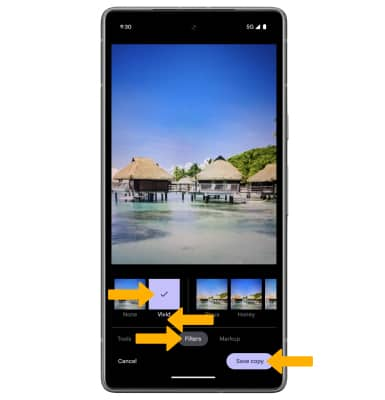
Use Magic eraser
1. While editing a photo, swipe left on the bottom area to Tools, then select Magic eraser.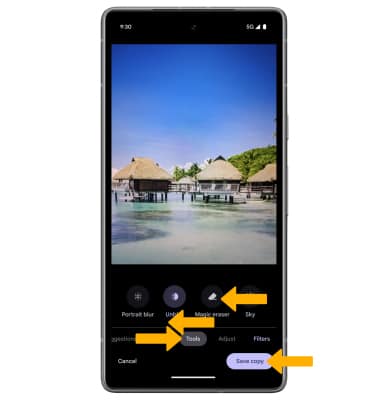
2. Circle or select any area on the image to erase.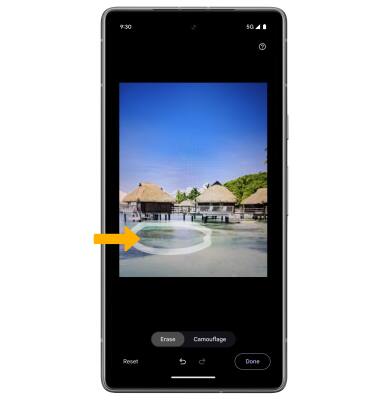
3. Select the desired option: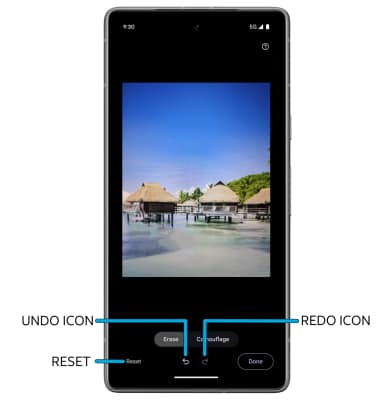
• RESET: Select Reset to revert the image back to its original state.
• UNDO: Select the Undo icon.
• REDO: Select the Redo icon.
4. When finished, select Done.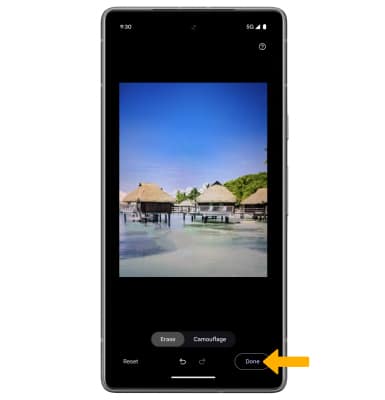
Use Photo Unblur
1. While editing a photo, swipe left on the bottom area to Tools, then select Unblur.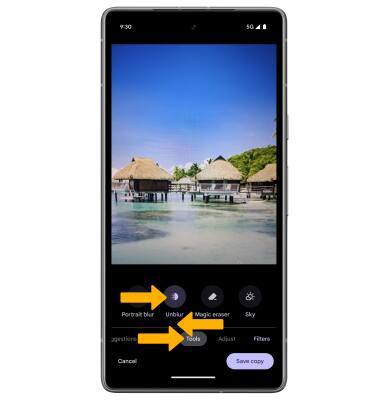
2. Swipe left or right to adjust effect strength as desired, then select Done.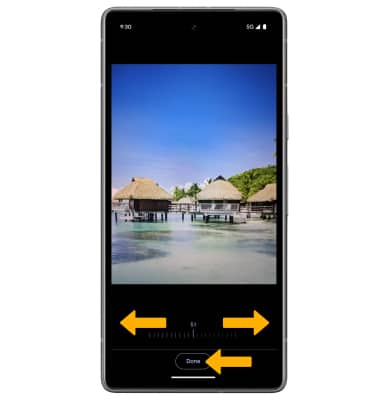
Use Night Sight
From the Camera app, swipe right to Night Sight, then select the Capture icon and hold the camera very still for about 5 seconds.