
In this tutorial, you will learn how to:
• Access the email settings screen
• Change sync frequency
• Change your email signature
• Add additional email accounts
• Delete an email account
• Change your email account password
Access the email settings screen
1. From the home screen swipe up to access the Apps tray, then select the  Gmail app.
2. Select the  Menu icon, then scroll to and select Settings. Choose the desired account.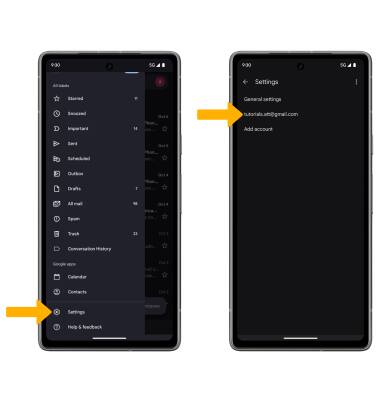
Change sync frequency
From the Account settings screen, scroll to and select Days of mail to sync. Enter the desired sync preferences, then select OK.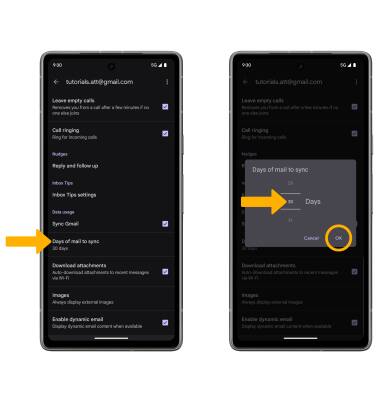
Change your email signature
From the Account settings screen, scroll to and select Mobile signature. Enter the desired signature, then select OK.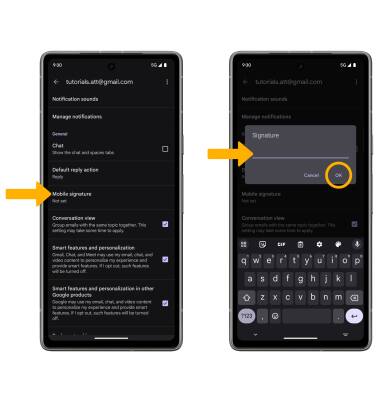
Add additional email accounts
From the Email settings screen, select Add account, then follow the on-screen prompts to complete set up.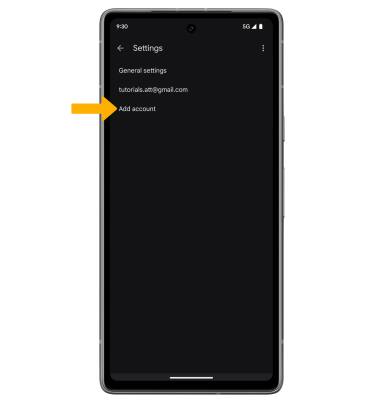
Delete an email account
From the Email settings screen, select the  Menu icon, then select Manage accounts > desired account > Remove account.
Note: You will be prompted to select Remove account again to confirm.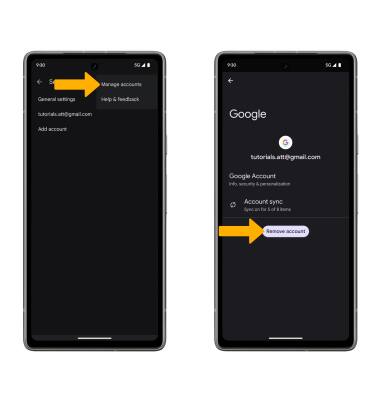
Change your email account password
1. Select the Account icon, then select Manage your Google Account.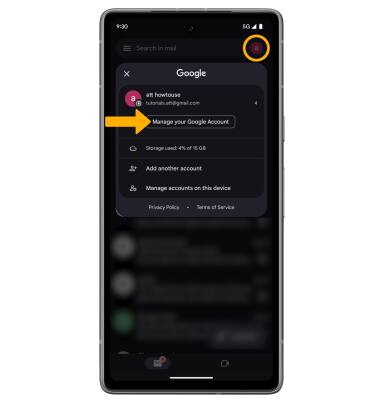
2. Select the Personal info tab, then scroll to and select Password.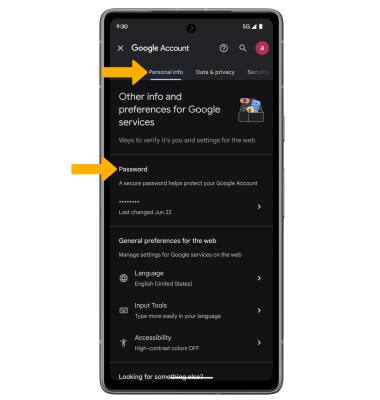
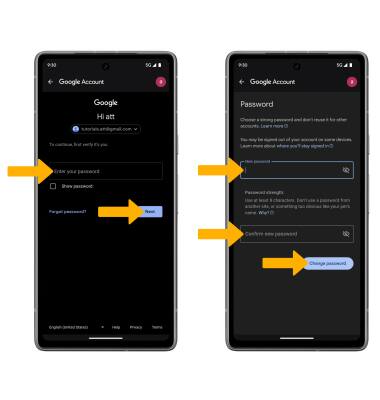
3. Enter your password, then select Next. Enter and confirm your new password, then select Change password.